Where a member record has an existing payment plan, additional invoices can be added to this same payment plan. The additional invoice can be divided equally into the remaining payment plan instalments or added to one specific instalment. An example when this process may be used is when an invoice has been created to reclaim dishonoured instalment fees.
Step by Step Guide
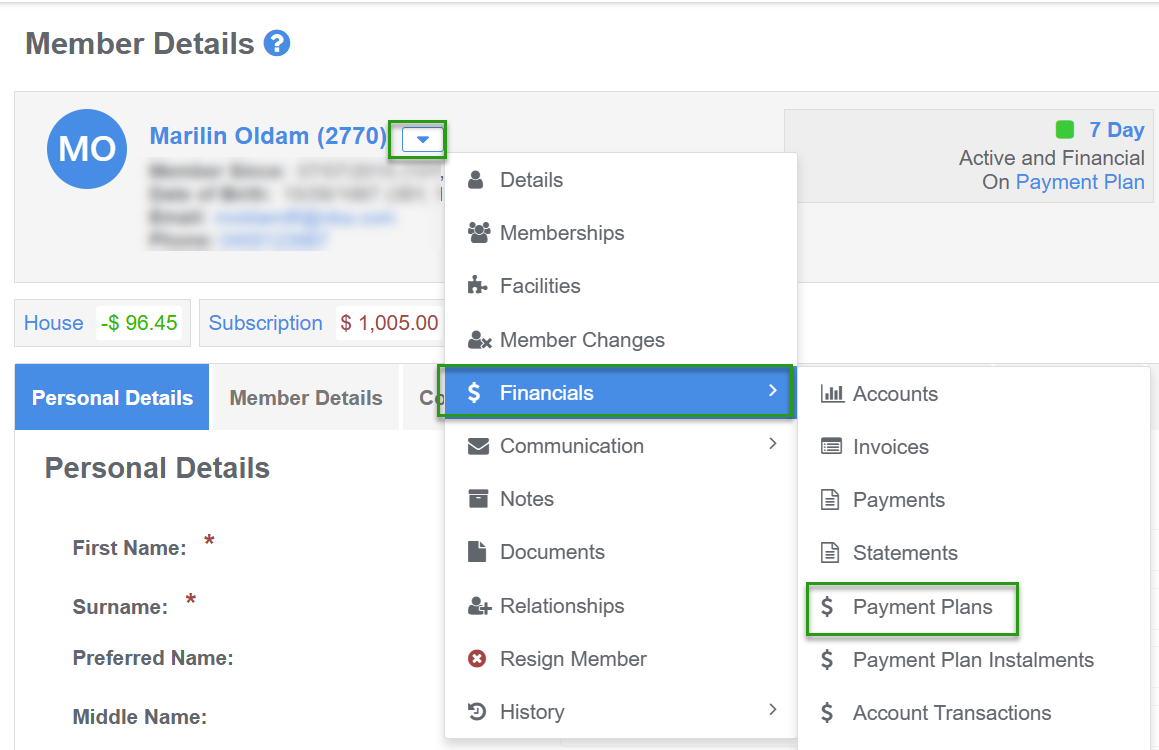
Step 1 - Navigate to the member's payment plan
- Use the Quick Search to find the member record
- Select Financials and Payment Plans from the Member Action menu
Step 2 - Edit the payment plan
- Select the Edit option from the Payment Plan Action menu or click the payment plan Instalment Progress bar

Step 3 - Add the invoice to the payment plan
- On the Edit Payment Plan screen select the +Invoice button
- Click Yes to confirm adding the invoice. This action will open the Instalment Allocation dialog box
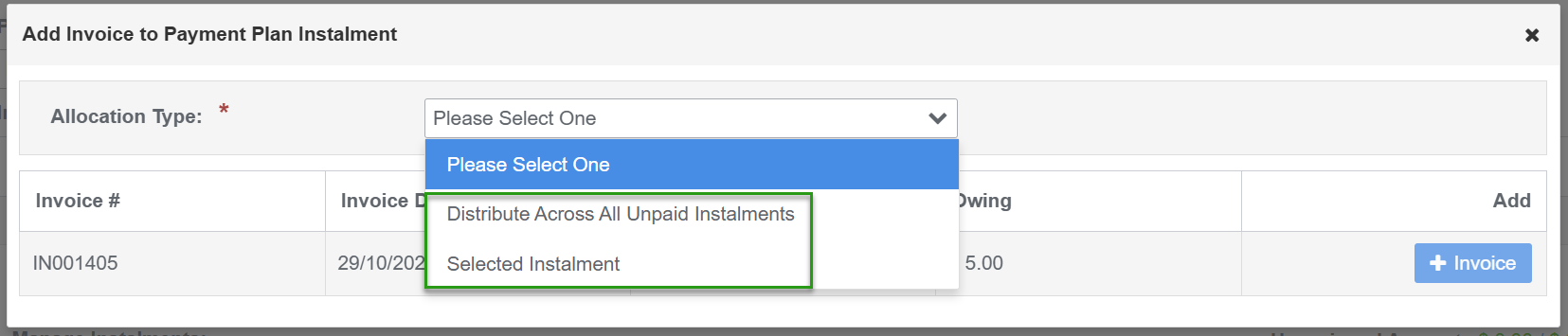
- Select the Allocation Type (* mandatory field) from the menu options:
- Distribute Across All Unpaid Instalments (the total invoice amount is distributed equally across all unpaid instalments), or
- Add invoice to a Selected Instalment (the total invoice amount is added to the selected instalment)
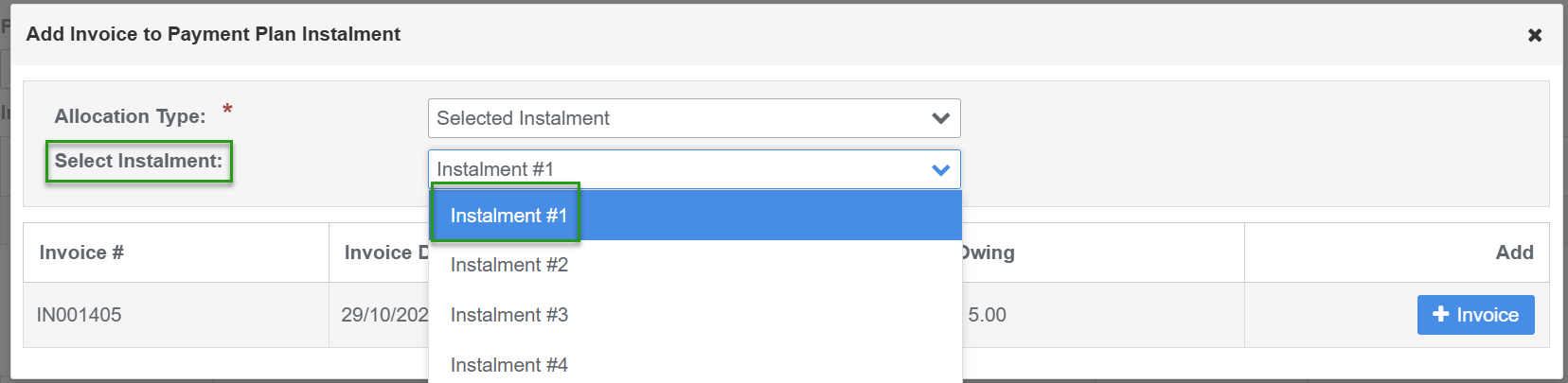
- If you chose to add the invoice to a Selected Instalment you must select which instalment you specifically want the invoice added to from the Select Instalment menu options
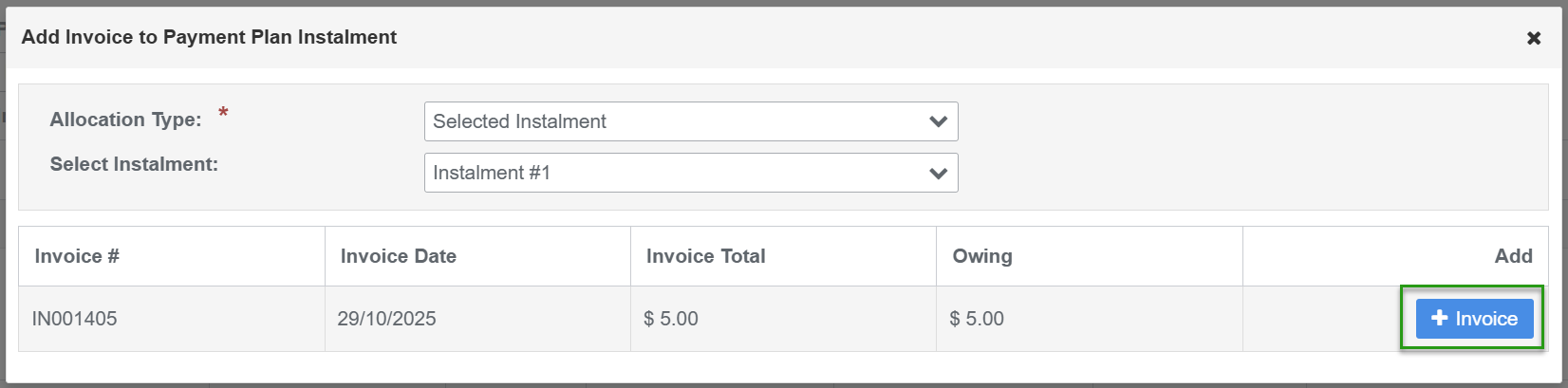
- Select the +Invoice button for the invoice you want to added to the payment plan

Was this article helpful?
That’s Great!
Thank you for your feedback
Sorry! We couldn't be helpful
Thank you for your feedback
Feedback sent
We appreciate your effort and will try to fix the article