Make your Dashboard work for you
Everyone uses MiMembership differently. Personalise your Dashboard by choosing the widgets that are most useful to you, so the information you need is always front and centre.
Add your Widgets
- Select Dashboard from the main menu
- Select + Add Widgets button

or
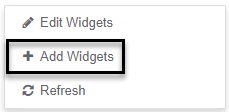
- Right Click in the blank space
- Select + Add Widgets menu option
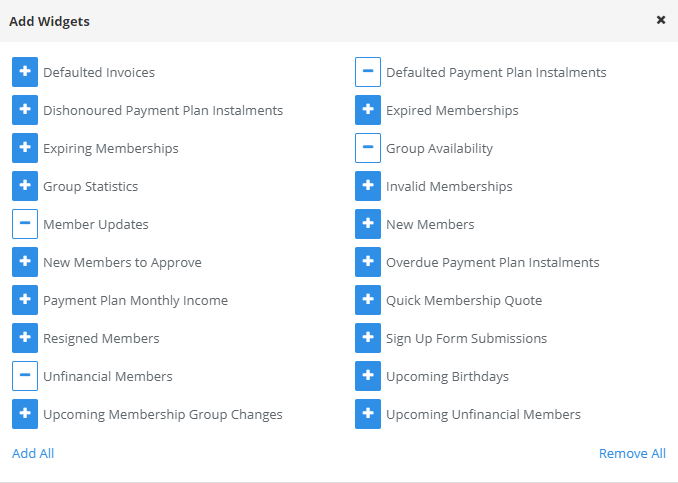
- Select + symbol for the widgets to display
- Close the Add Widgets window - selected widgets will now appear on the dashboard
- Click these links for steps on how to edit or remove a displayed widget:
- Edit a Widget
- Remove a Widget
Was this article helpful?
That’s Great!
Thank you for your feedback
Sorry! We couldn't be helpful
Thank you for your feedback
Feedback sent
We appreciate your effort and will try to fix the article