The main areas of MiMembership can be accessed through the Main Menu, located on the left-hand side of the screen. Each key area contains a number of repositories and tools for managing data and performing specific tasks.
The following sections provide an overview of each key area and its available functions.
What is a repository?
A repository is a central location where data is stored, organised, and managed.
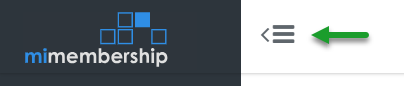
Tip: Use the Collapse action to hide or expand the Main Menu. Collapsing the menu provides more screen space for your work, while expanding it makes navigation easier. | 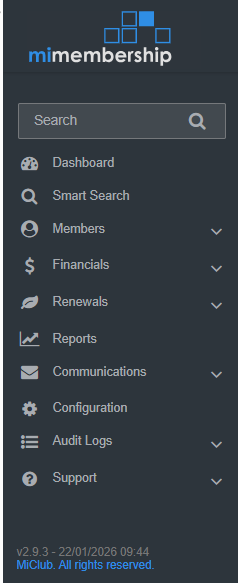 |
 |
1 - Quick Search
Quick Search allows you to search the database for specific records, including members, invoices, payments, and other items.
Enter a name or number in the search field, then select the relevant option from the results menu to access the record.
2 - Dashboard
The Dashboard displays data widgets that highlight important information and key activities.
You can personalise your Dashboard by adding, editing, or removing widgets relevant to your role and responsibilities.
For more information: See Add a Widget | Edit a Widget | and Remove a Widget.
3 - Smart Search
Smart Search allows you to search the database and build lists of records based on specific criteria.
You can search for members, invoices, payments, statements, payment plans, memberships, and more. Once you have generated a results list, you can perform bulk actions on the selected records.
For more information: See Smart Search for instructions on how to create and run a search.
4 - Members
The Members area contains tools for creating and managing individual member records, memberships, and related information.
The available repositories and functions include:
- Directory: View and manage individual member and debtor records.
- Create a Member: Create a new member record.
- Memberships: View and manage membership statuses and changes to memberships and groups.
- Notes Archive: View notes recorded against member records.
- Facilities: View current, past, and future facility allocations.
- Relationships: View linked member or debtor records.
- Member Draw: An optional paid module for running and editing member draws.
- Form Submissions: An optional paid module for reviewing and approving online membership application submissions.
For more information: See the step-by-step guides for processes within the Members area.
5 - Financials
The Financials area contains tools for managing invoices, payments, payment plans, accounts, transactions, and other financial activities.
The available repositories and functions include:
- Invoices: View outstanding, overdue, defaulted, and paid invoices.
- Payments: View payment records, including refunds and reversals.
- Statements: View existing statements and generate new statements.
- Accounts: View accounts and their current balances.
- Account Transactions: View account transactions, including invoices, credit notes, payments, point-of-sale (POS) transactions, and external transactions.
- Payment Plans: View current, completed, and closed payment plans.
- Payment Plan Instalments: View upcoming, overdue, defaulted, and paid instalments. Submit upcoming instalments to the payment gateway for processing, and manage dishonoured or failed instalments.
- POS Transactions: An optional paid integration for viewing member account charges and payments generated by an integrated POS system.
- Quotes: View pending, accepted, rejected, and expired quotes, and generate new quotes.
- External Transactions: An optional paid integration for viewing member account credits generated by external systems, such as MiClub Golf competition prizes.
- GL Integration: An optional paid integration for managing financial journals and batches sent, or awaiting submission, to the general ledger (GL). View, print, and export detailed journals.
For more information: See the step-by-step guides for processes within the Financials area.
6 - Renewals
The Renewals area provides a guided wizard for processing membership renewals and generating invoices.
The Renewals Wizard guides you through the renewal process, while the history section provides access to previous renewal batches.
For more information: Refer to the following resources for renewal preparation and processing:
7 - Reports
The Reports area provides standard system reports covering a range of topics, including:
- Members and memberships
- Financials: Invoices and Payments | Accounts and Transactions
- Communications
- General ledger
- Configuration
For more information: See the reports glossary and instructions on how to generate and run a report.
8 - Communications
The Communications area allows you to create and send email and SMS messages, access previously sent communications, and review message history.
The available repositories and functions include:
- Send Email: Create and send emails to individual members or multiple members.
- Send SMS: An optional paid module for creating and sending SMS messages to individual members or multiple members.
- Draft Emails: View and manage email drafts that have not yet been sent.
- Past Emails: View a record of emails created and sent, and view or resend previous emails.
- Email History: Review a log of emails sent, organised by type.
- Email Requests: View pending and failed email requests, resend messages, and troubleshoot unsuccessful requests.
For more information: See the communications guides for instructions on creating and sending messages.
9 - Configuration
The Configuration area contains settings used to customise and manage your MiMembership site. These include communication templates, member custom fields, membership groups, charges, and payment plan templates.
The available configuration areas include:
- Communications: Update default email content and document templates, create email templates, and manage communication processes.
- Members: Create and manage membership groups, facilities, and custom fields.
- Financials: Create and manage account types, charges, payment plan templates, and payment methods. Add a chart of accounts for general ledger integration.
- Security: Create and manage MiMembership user accounts and access permissions.
- Integrations: Connections to third-party applications linked to your MiMembership site. Contact MiClub Support before making any configuration changes.
- Sign-up Form: An optional paid module for updating online application forms and membership group settings.
- Shares: An optional paid module for managing share registry settings.
10 - Audit Logs
The Audit Logs area provides a record of activity within your MiMembership site, including changes and updates to member timelines.
Audit Logs can also help you investigate system activity, check which emails have been sent, and verify whether integrations are operating correctly.
11 - Support
The Support area provides access to resources and services to help you use MiMembership and resolve issues.
You can use this area to:
- Access online manuals and troubleshooting resources.
- Report an issue to the MiMembership help desk.
- Request a personalised training session.
- Access third-party provider and integrated system web portals, such as MiClub Golf, Payrix, and SMS Global.
Was this article helpful?
That’s Great!
Thank you for your feedback
Sorry! We couldn't be helpful
Thank you for your feedback
Feedback sent
We appreciate your effort and will try to fix the article