Discounts can be used to offer a dollar or percentage value reduction on invoices, with specific selection on the invoice charges that are to be either included or excluded from the applied discount
Once the discount has been created it can be applied to individual invoices or renewal invoices
Only one discount or one promo code can be applied to the same invoice
Step by Step Guide
Step 1. Create the new Discount
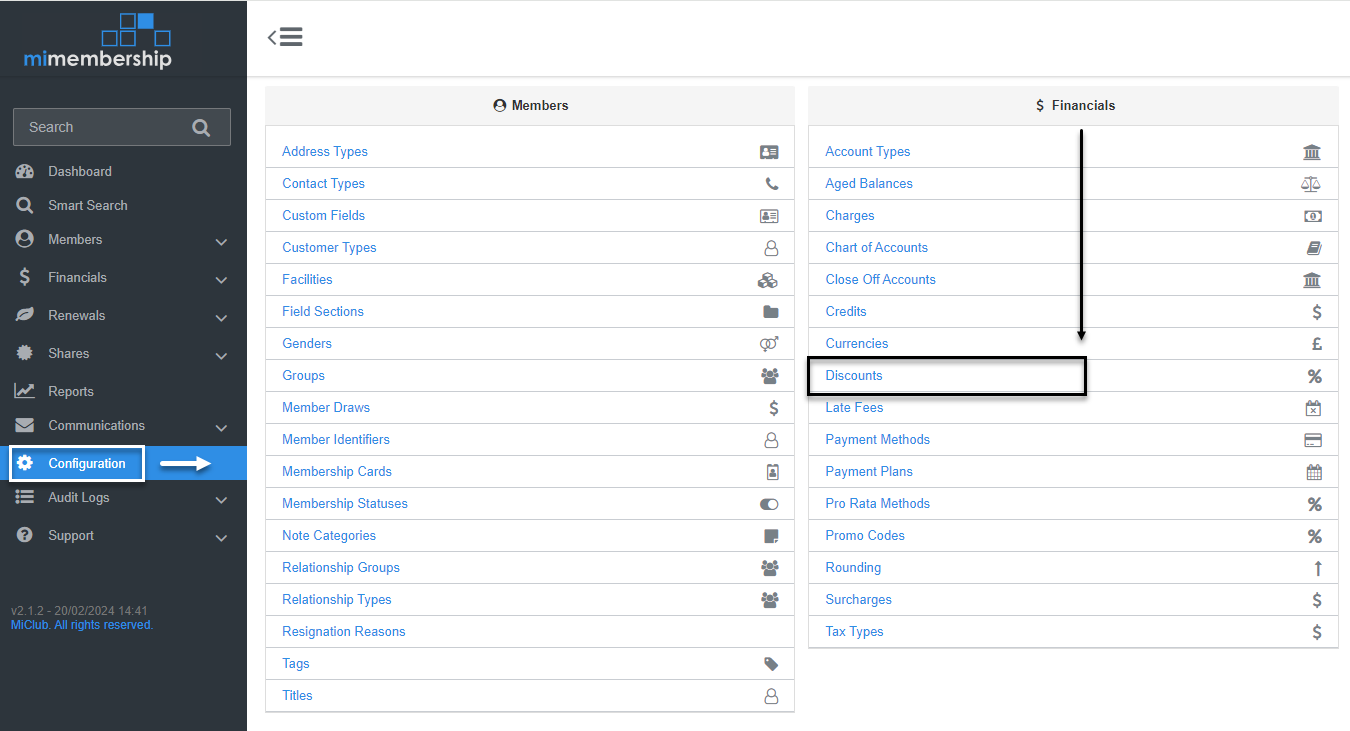
- Navigate to Configuration, and select Discounts (located under Financials
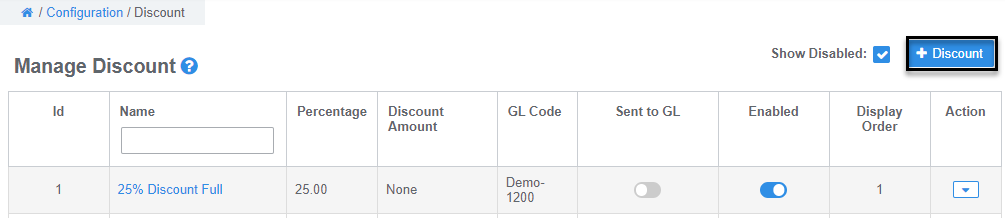
- Select the +Discount button
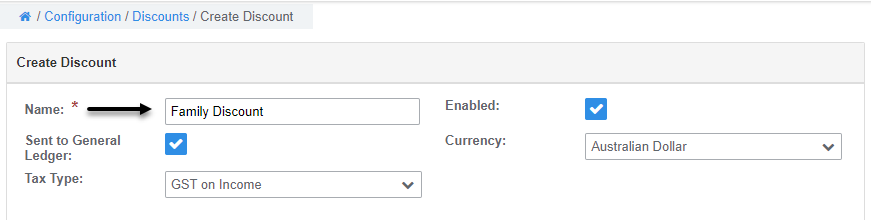
- Enter a Name for the Discount, Tax Type and GL ode (if applicable). The discount name is only visible to the MiMembership User. The system invoice templates include a generic discount description visible to the recipient
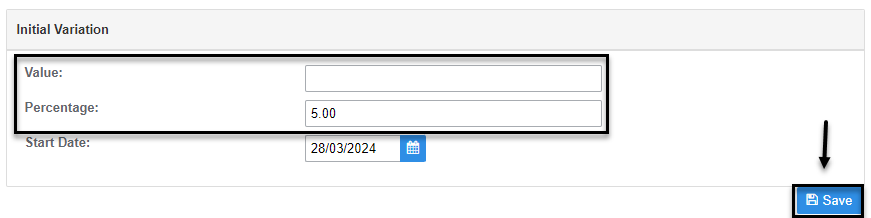
- Enter a Dollar Value OR Percentage for the Discount Variation and Save. The Start Date defaults to date of creation and may be changed if the discount is being configured ahead of time
Step 2. Apply the discount to select Charges
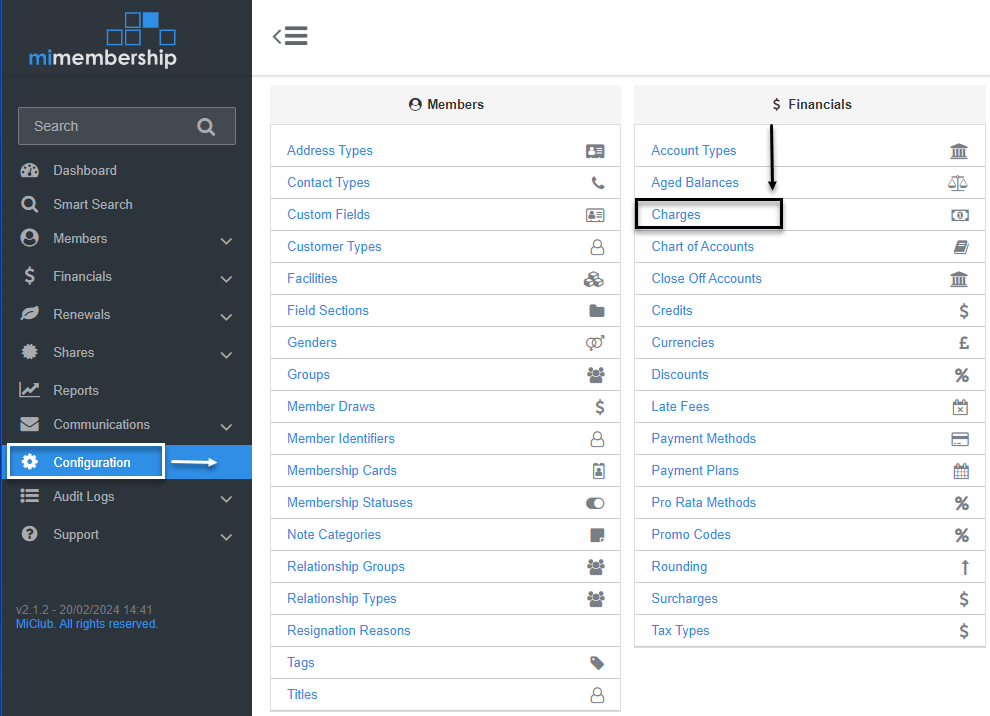
- Navigate to Configuration, and select Charges (located under the Financials section)
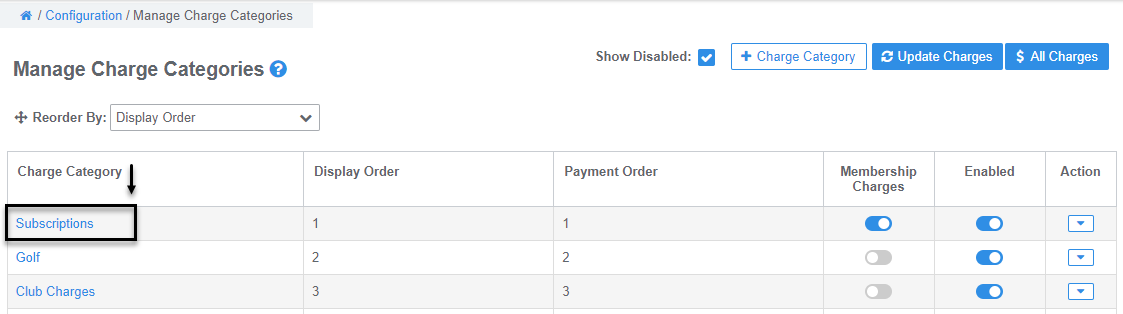
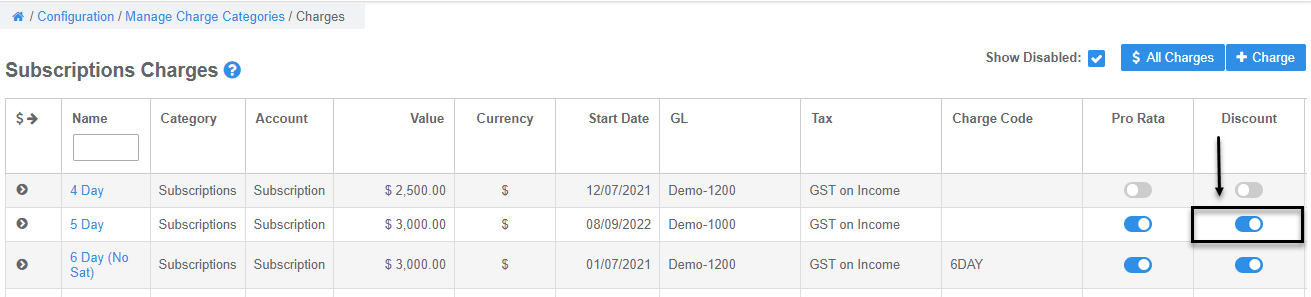
- In the Manage Charge Categories screen, click the Charge Category and toggle the Discount Button ON for each Charge the discount can be applied to
The discount can now be applied to invoices that have the discountable charges item applied. See instructions on how to Apply or Remove a Discount from Individual Invoices>
Was this article helpful?
That’s Great!
Thank you for your feedback
Sorry! We couldn't be helpful
Thank you for your feedback
Feedback sent
We appreciate your effort and will try to fix the article