The Form Submission repository displays all pending, previously approved and rejected submissions. Each submission has an information link and action menu. This process is actioned when a prospective new member completes and submits the online MiMembership sign up form.
The online Membership Sign Up Form is an additional paid module of MiMembership. Clubs have the option to manually approve new submissions (as outlined in this help solution) or include online payment with auto approval of submissions.
Step by Step Guide
Step 1 - Select and approve the submitted form
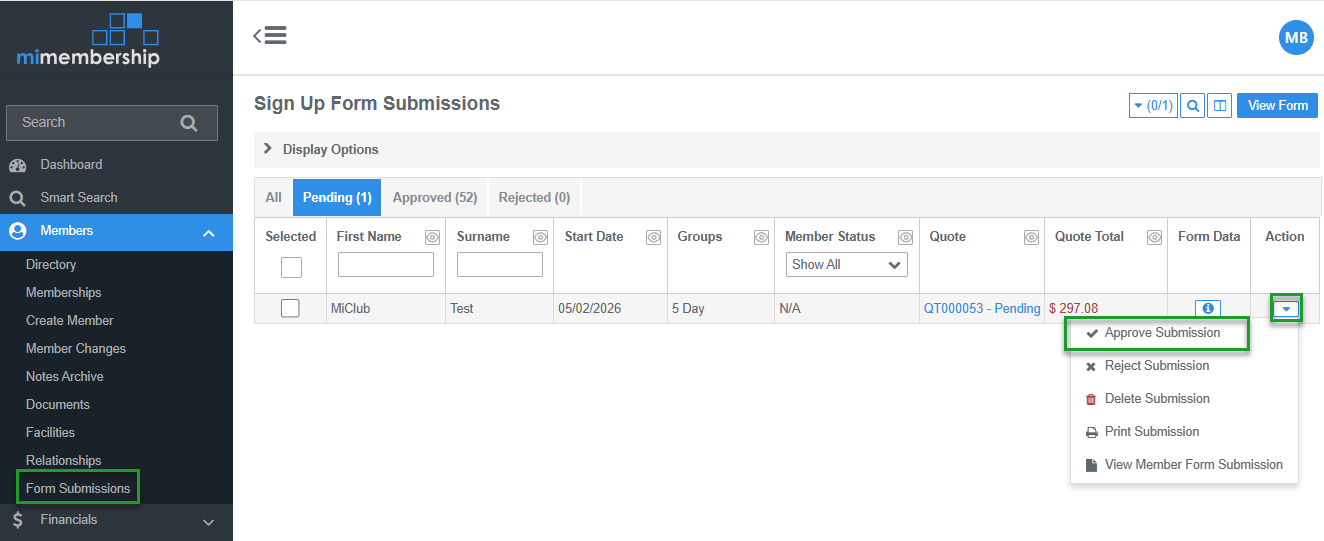
- Navigate the main menu to Members and select Form Submissions
- Select the Pending Tab
- From the Member Action button select the Approve Submission option - this action opens the Accept Quote screen
Step 2 - Create and update the New Member Record
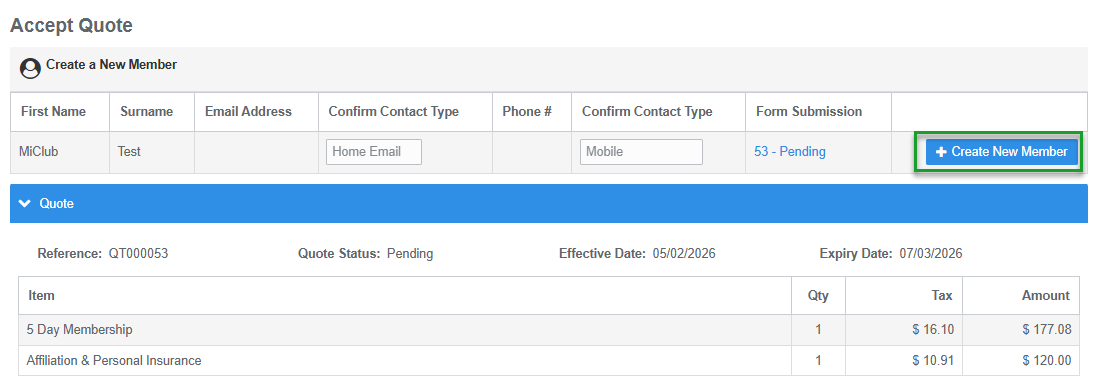
- Click the + Create New Member button - this action opens the Create Member process
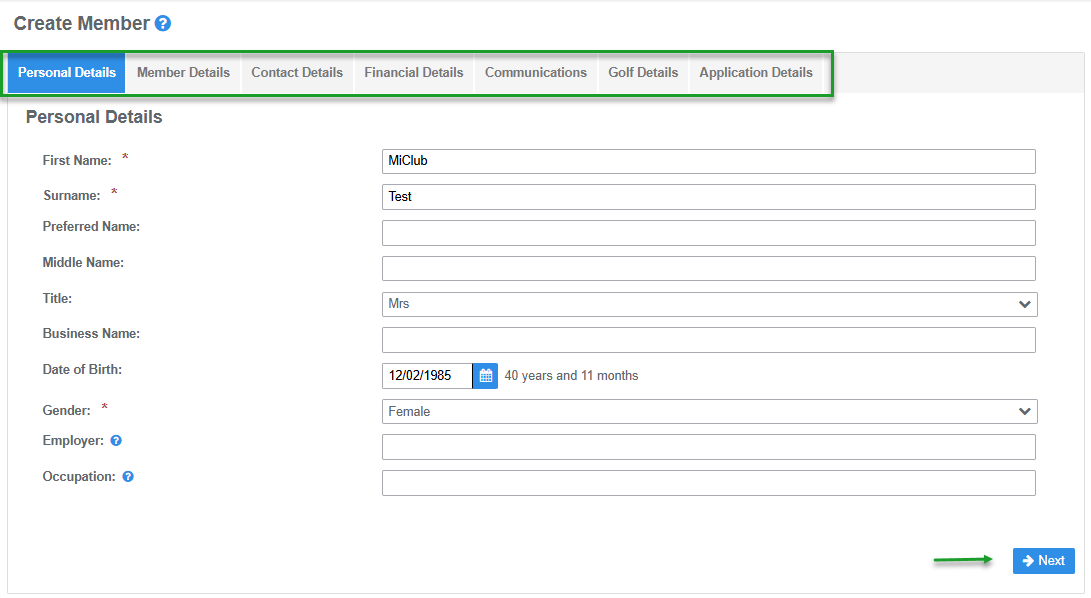
- Click the -> Next button on each of the Details tabs. You can update or add details to the member information fields
- Click the Save button located on the last tab screen - this action opens the Create Memberships screen
Step 3 - Add memberships and create the membership invoice
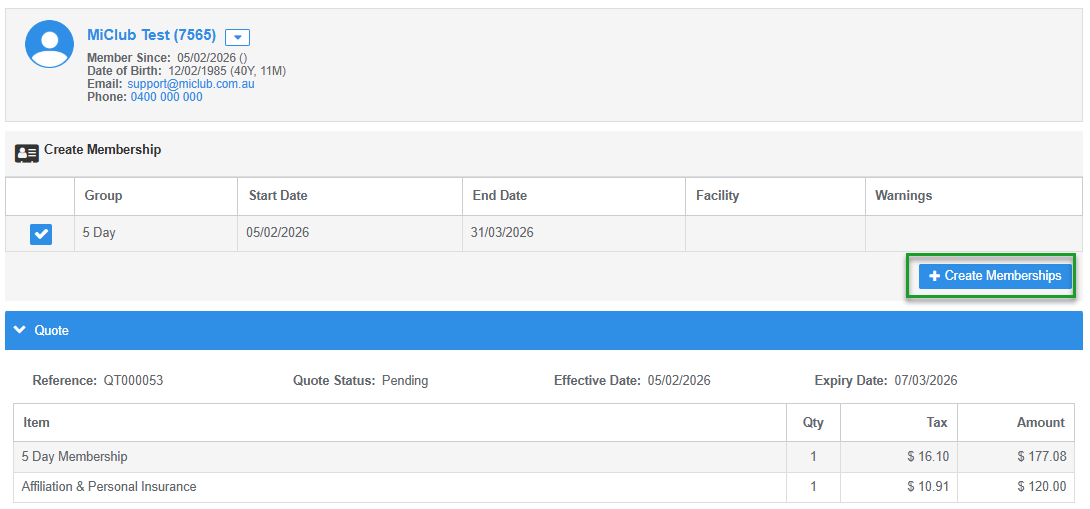
- Click the + Create Memberships button
- Click the + Save Quote as Invoice button - this action will open the account pop up window
- Select the Account Type for the invoice i.e. subscription and click Continue button
- Set the invoice Dates and click the Save button
- Tip: before you save the invoice you can add more line items for additional charges such as joining or administration fees
- The form submission is approved and the member record created. Select an action to complete in the Invoice Task Bar (top of screen) or Dismiss
Was this article helpful?
That’s Great!
Thank you for your feedback
Sorry! We couldn't be helpful
Thank you for your feedback
Feedback sent
We appreciate your effort and will try to fix the article