Complete this process when the payment plans were not created during the Renewal Wizard process, or, if there are any negative charges on membership renewal invoices.
The payment plans cannot be created during the wizard process when an invoice has a negative charge. If this is the case, the following message will display under the Preview Payment Plans tab: One or more invoices has a negative charge. You will need to finalise create of the invoices first and then create the payment plans after the renewal process is complete...
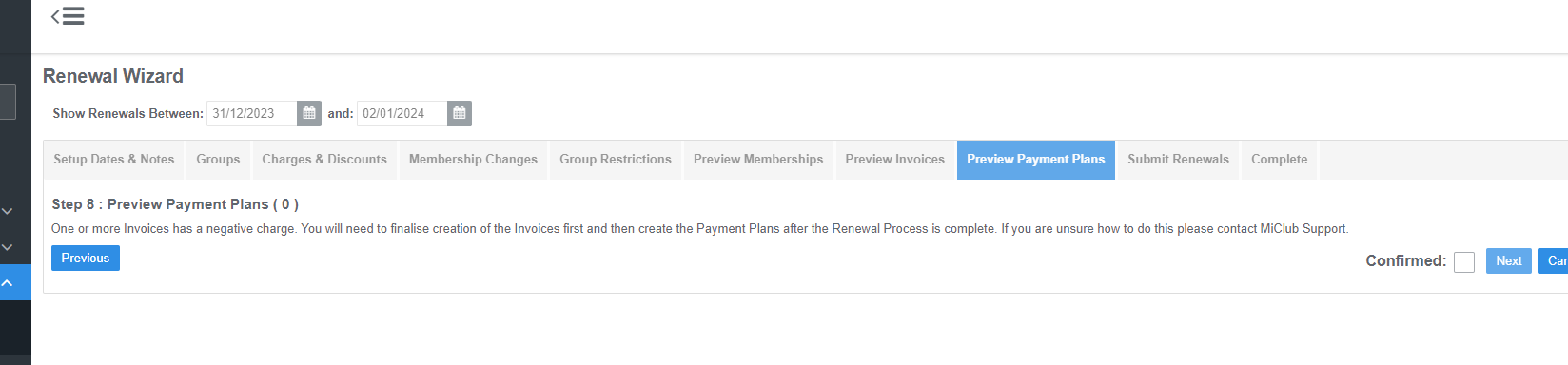
To create the payment plans:
Step by Step Guide
1. Navigate to renewal batch (Renewals / History)
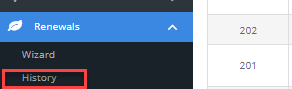
2. Open the invoices repository for that batch by clicking on the number of invoices or using the action menu,
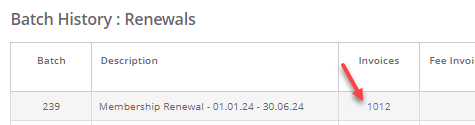 |  |
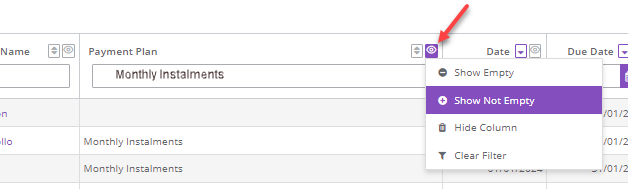
3. Ensure that the "Payment Plan" column is selected
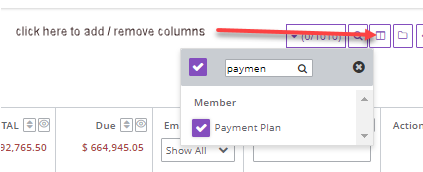
4. Filter the payment plan column using "show not empty" or by typing the name of the specific payment plan template in the column search. (This will give you a list of all of the invoices where the member has a payment plan template set up on their profile - if you have more than one payment plan profile, type in the payment plan name to filter.
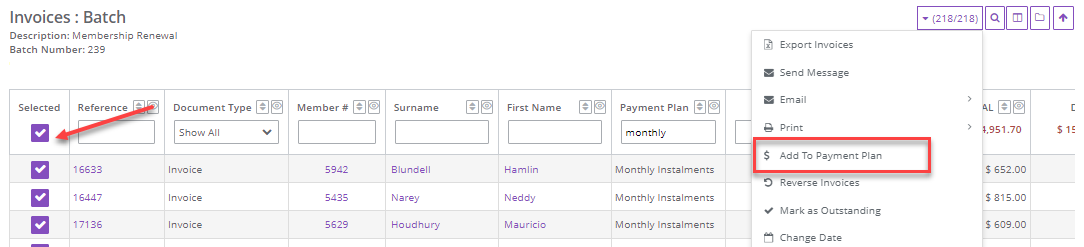
5. Select All, and using the bulk action dropdown, select "Add to Payment Plan"
6. Select the template for the payment plans you are creating and the start date for the plans, then "create payment plans"
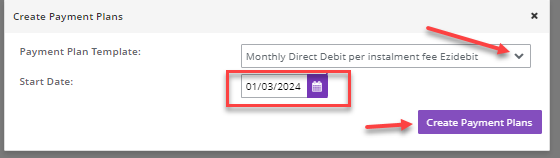
7. The payment plans will be created in a batch and can be actioned from there.
Was this article helpful?
That’s Great!
Thank you for your feedback
Sorry! We couldn't be helpful
Thank you for your feedback
Feedback sent
We appreciate your effort and will try to fix the article