Membership Renewals: Pre-Planning Checklist
Before processing your membership renewals, we recommend completing the following pre-planning steps to ensure your membership records, charges and renewal settings are accurate and up to date.
Each step is explained in detail in the Detailed Guide step-by-step below. Alternatively, you can watch a video walkthrough for each step on the Renewals Pre-Planning Videos help page.
Step 1 – Review and Action Membership Statuses
Review the document, financial and invalid statuses of your memberships, and update them as required.
- Invoice Required / Credit Required: Change the status to Document Not Required for memberships that should not be invoiced during the renewal process.
- Unfinancial: Resign any memberships that are not to be renewed.
- Invalid: Schedule membership group changes to take effect at the next renewal.
Step 2 – Update Membership Groups
Action all requested membership group changes and process any required resignations to ensure members are assigned to the correct groups for renewal.
Step 3 – Set Up Payment Plan Templates
Review existing payment plan templates and create or update templates as required. Ensure the correct payment plan template is assigned to the direct debit payee's financial details and that all template settings are configured correctly.
Step 4 – Identify Invalid and Special Memberships
Run reports or use Smart Search to identify members who may be eligible for a special membership group. Update their existing membership group or add them to the appropriate special membership group as required.
Step 5 – Update Charges
Review and update the price variations applied to membership group charges and discounts to ensure renewal pricing is correct.
Step 6 – Verify Membership Group Configuration and Charges
Run system reports to review and confirm the configuration, charges and settings for all membership groups. Remove any charges, such as joining or entrance fees, that should not be included in the membership renewal process.
Step 7 – Create or Edit Promotional Discounts
Create new promotional discounts or update existing discounts to reflect any promotions or special offers that will apply during the renewal period.
Step 8 – Review Credit Settings
Review credit settings for pre-paid bar accounts and levies. Confirm the credit amounts and ensure the credit and expiry date options are configured correctly.
Step 9 – Review the Membership Renewal Invoice Template
Review and update the email body content in the membership renewal invoice template. Ensure the correct template is added to the membership invoice process so members receive the appropriate renewal communications.
Detailed Guide
Step 1 – Review and Action Document, Financial and Invalid Membership Statuses
Part 1 - Invoice Required and Credit Required
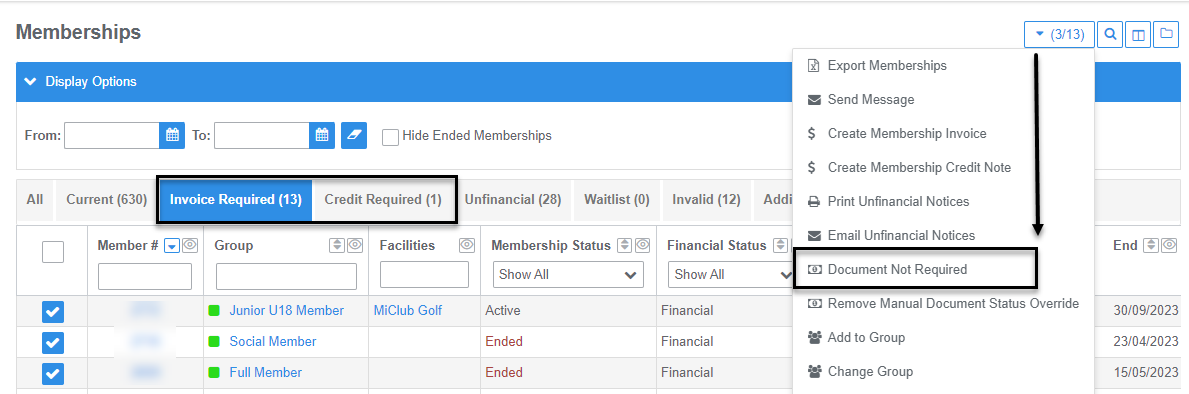
- Navigate to Members > Memberships > Invoice Required.
- Identify memberships that do not require an invoice during the renewal process.
- Select the relevant memberships and, from the Bulk Action drop-down menu, select Document Not Required.
- Repeat this process for any memberships with a Credit Required status that do not require credit processing during renewals.
Important Note: If a membership group change is scheduled to take effect from the start of the next membership year, do not change the document status. Leave the membership with an Invoice Required status to ensure the renewal invoice is generated during the Renewal Wizard process.
Part 2 - Unfinancial Memberships
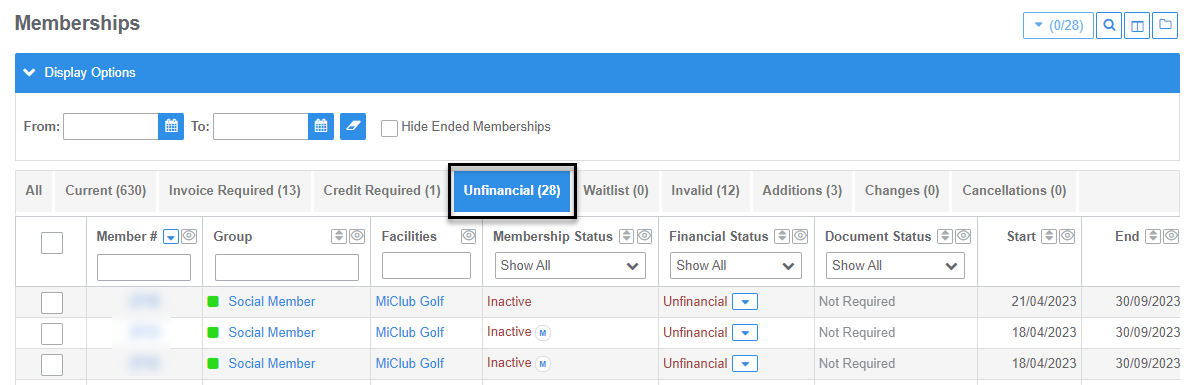
- Navigate to Members > Memberships > Unfinancial.
- Review the list of unfinancial memberships and identify any memberships that are not to be renewed during the Renewal Wizard process.
- End or resign these memberships as required.
Recommendation: We recommend completing the formal resignation process for any unfinancial members who are not renewing their membership.
For instructions, refer to Resign a Member
Part 3 - Invalid Memberships
You can identify and review invalid memberships using either the Membership Repository or the Invalid Renewals Report. Follow one of the options below to review and update membership groups before processing renewals.
Option 1 – Use the Membership Repository
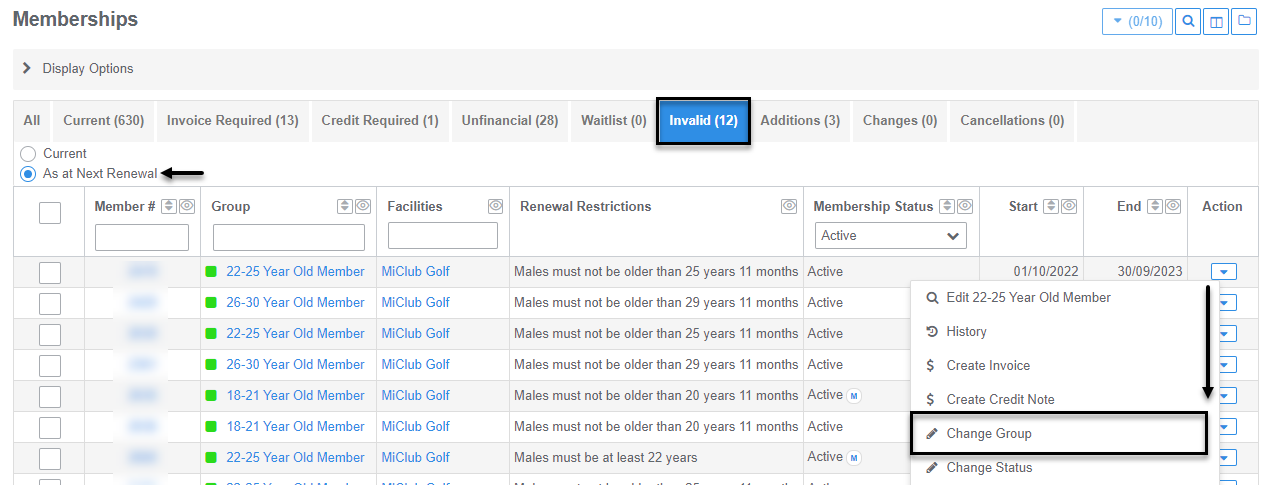
- Navigate to Members > Memberships > Invalid Memberships.
- Select the As at Next Renewal option to view memberships that will be invalid at the next renewal.
- Select the relevant memberships.
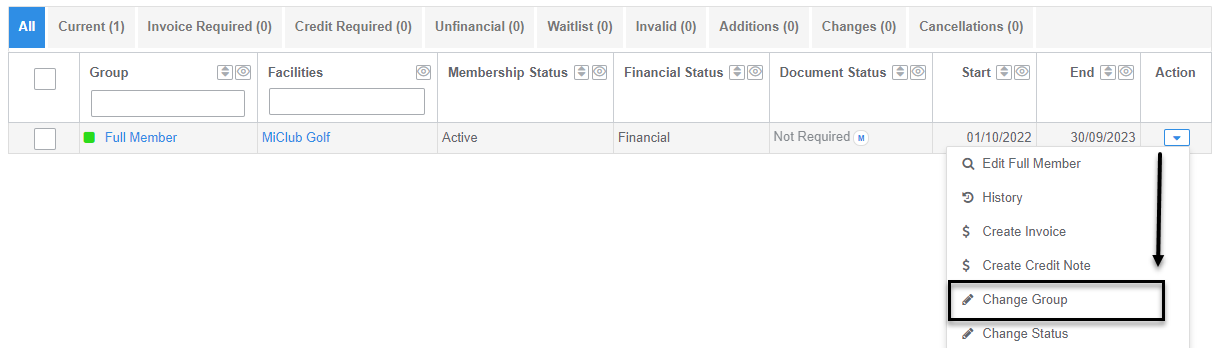
- From the Action drop-down menu, select Change Group.
- Set the effective date to the start date of the next membership year.
- Select the new membership group and click Add Group to apply the change.
Option 2 – Use the Invalid Renewals Report
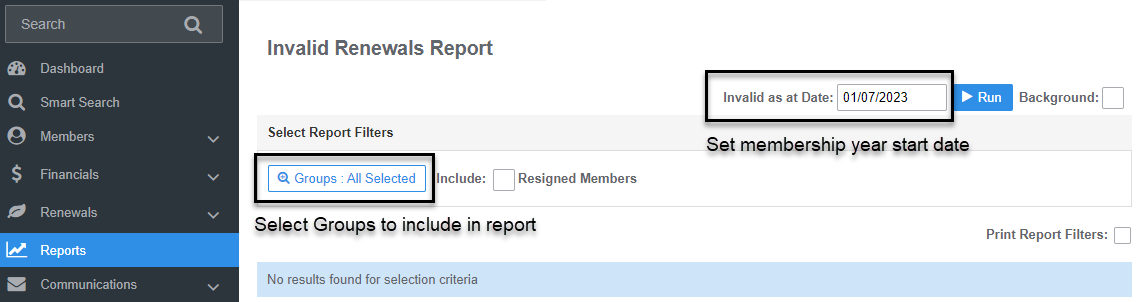
- Navigate to Reports > Membership > Invalid Renewals.
- Set the Invalid as at Date to the start date of the next membership year.
- Use the filters to select the membership groups you want to report on.
- Click Run to generate the report.
- Once the report has run, click Repository to open the corresponding repository screen.
- From the repository, you can select the relevant members or export the results for further review and action.
Step 2 – Change Membership Groups
If a member has requested a change to their membership group for the next membership year, you will need to update their membership using a new effective date.
Important Note: Always use the Change Group option from the Actions drop-down menu on the membership that is being discontinued.
Do not use the +Add Membership button or the End Membership option. Using the correct process ensures the membership group change is recorded appropriately for the next renewal period.
Once the membership group change is complete, the document status for the new membership can remain as Invoice Required. The renewal invoice will be generated during the Renewal Wizard process.
For detailed instructions, refer to Instructions to Change a Membership Group.
Step 3 – Setting Up Payment Plan Templates
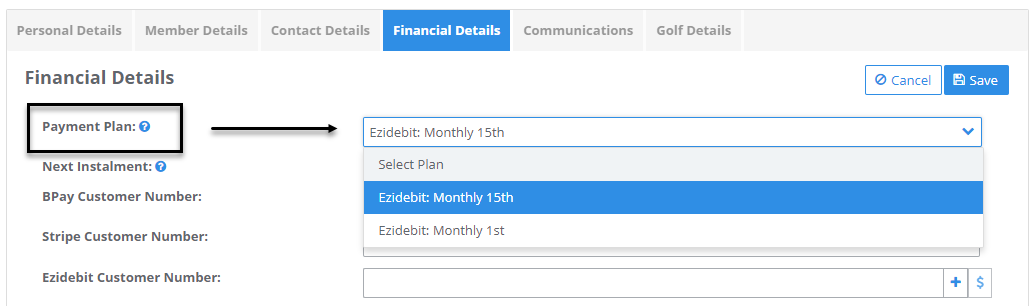
Members who will continue making direct debit payments and remain on a payment plan for the next membership year must have a payment plan template selected in their Financial Details.
This setup should generally be completed when a member first requests to pay an invoice by instalments. Before processing renewals, review existing payment plan templates and confirm that the correct template is assigned to each applicable member.
Members without a payment plan template assigned in their Financial Details will not automatically have their renewal invoice placed on a payment plan during the Renewal Wizard process.
Important Note – Worldpay (Payrix) Integration
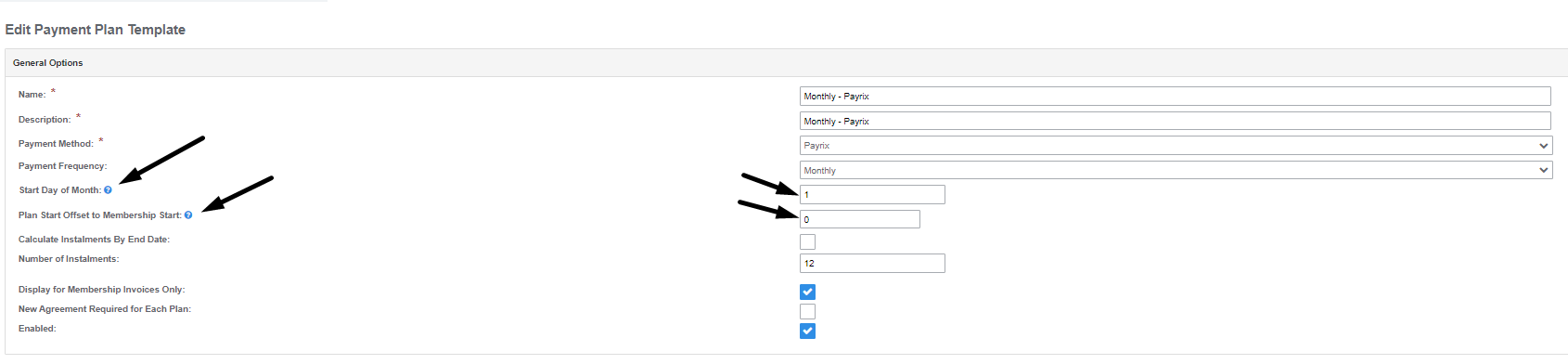
If you use the Worldpay (Payrix) direct debit integration, ensure your payment plan templates are configured correctly for the start of the new membership year.
- Start Day of Month: Set this to the desired day of the month for direct debit payments to commence.
- Offset Membership Start: Ensure this setting matches the Start Day of Month value. If the Start Day of Month is set to 1, set the offset to 0.
- Calculate by End Date: Before the new membership year begins, this setting must be unticked. Once the new membership year starts, re-enable the setting by selecting Calculate on End Date.
Reminder: Review these settings before and after the membership year rolls over to ensure direct debit payment plans are scheduled correctly.
Step 4 – Identify Invalid and Special Memberships
Run reports or use Smart Search to identify members who may be eligible for a special membership group or discount category before processing renewals.
If your organisation offers special membership groups or discounts based on factors such as length of membership (tenure) or age, you may need to create a Smart Search to identify members who meet the eligibility criteria.
Once eligible members have been identified, review their records and update their membership group or add them to the appropriate special membership group, as required.
Need assistance?
If you need help identifying eligible members or setting up a Smart Search, email support@miclub.com.au. Please include as much detail as possible about your membership group requirements and eligibility criteria. One of our membership specialists will be happy to assist.
Step 5 – Update Charges
If you need to change or increase the price variations for membership charges for the next membership year, you can update these in advance of the renewal process.
Charge updates can be completed in either of the following ways, depending on your requirements:
- Edit Charges Individually: Update each membership charge one at a time.
- Bulk Edit Charges: Update multiple membership charges in a single process.
Ensure all changes are configured to take effect from the start of the next membership year so that the updated charges are applied correctly during renewals.
Step 6 – Check the Configuration and Charges for All Membership Groups
Before processing renewals, review your membership group configuration and charges to ensure everything is set up correctly for the next membership year.
Review Configuration Reports
Navigate to Reports > Configuration and run the following three reports. For each report, set the As at Date to the start date of the next membership year.
1. Charge Details Report
Review the charge variations to confirm they reflect any price changes made in Step 5.
2. Group Charges Report
Check the charges assigned to each membership group to ensure the correct charges will apply during the renewal process.
3. Group Details Report
Confirm that each membership group has the correct:
- Renewal Date
- Type
- Facility Type – ensure all golf memberships have the Golf facility type assigned.
Remove Charges That Should Not Be Included in Renewals
Some charges, such as joining or entrance fees, may not need to be included in membership renewals. Follow these steps to remove any charges that should not apply:
- Navigate to Configuration > Groups.
- Click on the relevant Membership Group Type.
- Select the name of the membership group you want to update.
- Open the Charges tab.
- Click the Action button next to the charge you want to remove.
- Select Remove.
- Click Save to apply the changes.
Repeat this process for each membership group that requires updating.
Need assistance?
If you need help reviewing or updating your membership group configuration, email support@miclub.com.au for assistance.
Step 7 – Create or Edit Promotional Discounts
MiMembership allows you to apply promotional codes and discounts to membership invoices for special offers, such as early payment incentives.
Before processing renewals, review any planned promotions and create new promotional discounts or update existing ones as required.
For detailed instructions, refer to Instructions for setting up Promo Codes
Need assistance?
If you require additional help or information about setting up promotions and discounts, email support@miclub.com.au. One of our support team members will be happy to assist.
Step 8 – Review Credit Settings (Pre-Paid Accounts / Levies)
Before processing membership renewals, review the credit settings for any pre-paid (i.e. food and beverage) accounts or levies to ensure the correct credits and expiry rules will apply.
Review Credit Configuration
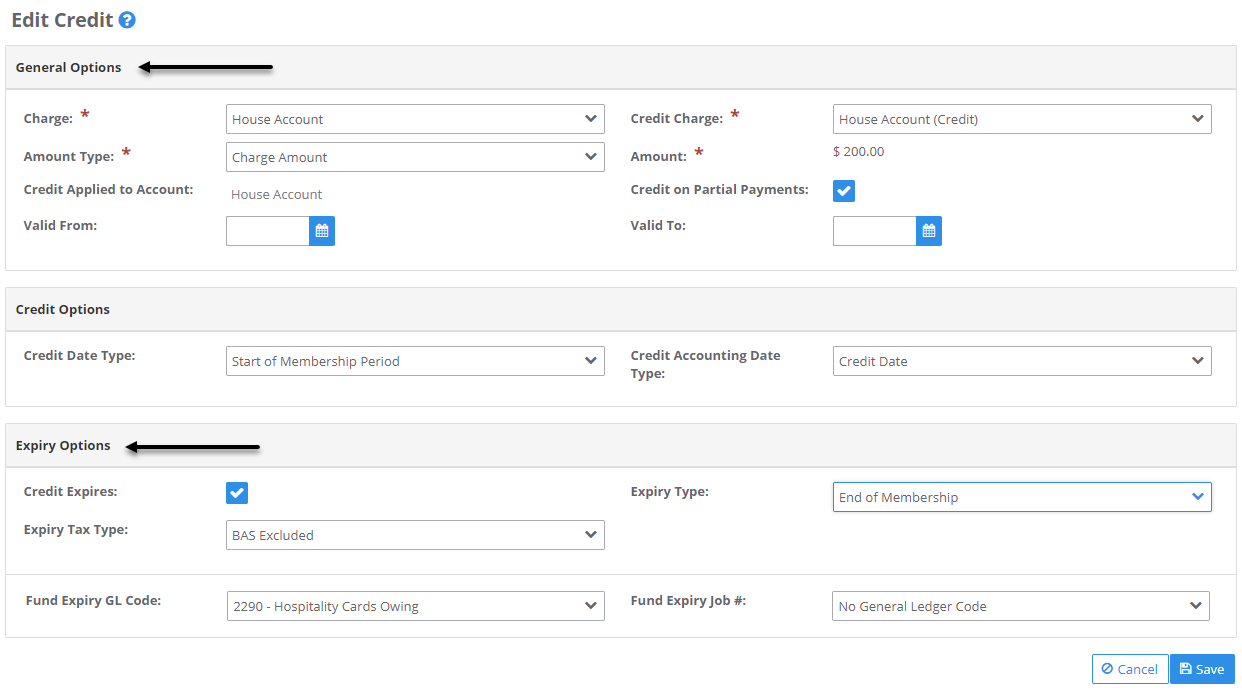
- Navigate to Configuration > Financials > Credits.
- Review the general settings and confirm the following details are correct:
- Charge
- Credit Charge
- Amount Type
- Amount
- Configure the Credit Options to ensure credits are applied correctly.
- Review and configure the Expiry Options to ensure credits expire according to your requirements.
Important Note: The Valid From and Valid To dates are only required when a credit is applied to an account based on the date a levy invoice or charge is paid. If your credit arrangement does not depend on the payment date, these fields are not required.
Step 9 – Edit the Membership Renewal Invoice Email Content and Email Process
Before processing renewals, review the membership renewal invoice email content and ensure the correct email template is linked to the membership invoice email process.
Adding the Membership Renewal Invoice template to this process makes it available for selection from a drop-down menu when you are ready to send renewal invoice emails to members.
Important: Sending renewal invoice emails is a manual process completed after the Renewal Wizard has finished.
Part 1 – Review and Update the Email Content
- Navigate to Configuration > Communications > Email Content.
- Click on the Membership Renewal Invoice body name.
- Review the existing email content and make any required updates.
- Click Save to apply your changes.
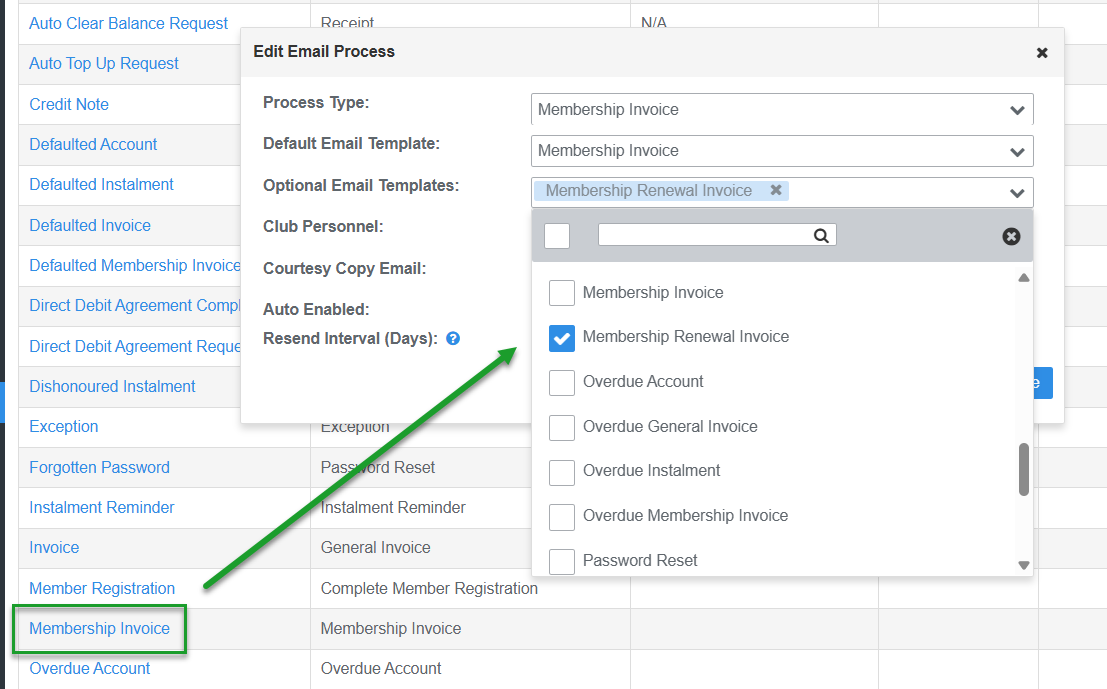
Part 2 – Add the Template to the Membership Invoice Email Process
- Navigate to Configuration > Communications > Email Processes.
- Click on the Membership Invoice process name.
- Locate the Optional Email Template menu options.
- Select the Membership Renewal Invoice template by ticking the corresponding checkbox.
- Click Save to apply the changes.
Once configured, the Membership Renewal Invoice template will be available for selection when you are ready to send renewal invoice emails to members following completion of the Renewal Wizard.

Was this article helpful?
That’s Great!
Thank you for your feedback
Sorry! We couldn't be helpful
Thank you for your feedback
Feedback sent
We appreciate your effort and will try to fix the article