Complete this manual process to create a new General Ledger Code or Job Code (tracking categories) to map to a financial item, such as account types, charge types and payment methods, within the database.
General Ledger (GL) integration is a paid module. Ask your MiClub account manager for pricing.
Step 1 - Create the GL Code or Job Number
- Select Configuration from the main menu and then Chart of Accounts, located under the Financials section
- Click on the name GL Code link to create a new General Ledger Code, or click the name Job# link to create a new Job Code
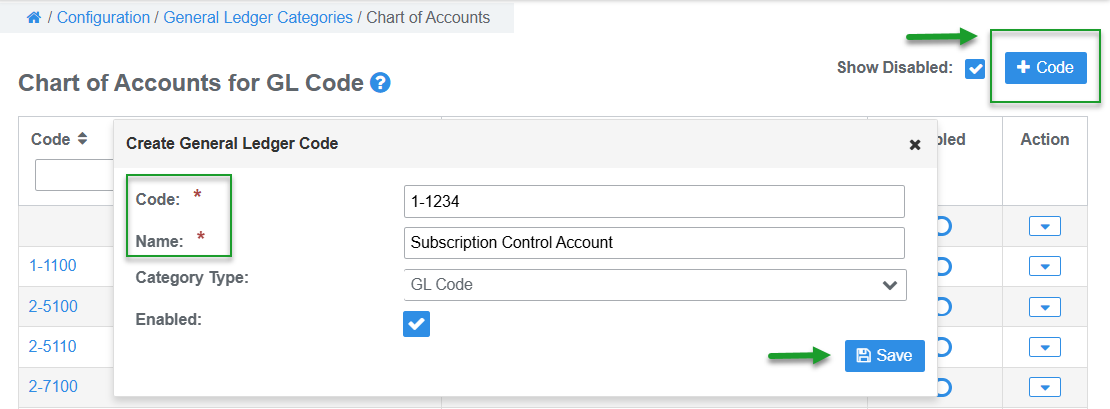
- Select the +GL Code button or +Code button
- Enter the Code and Name, then Save
- If you have GL integration enabled ensure the Code and Name match to the same general ledger or job codes in your accounting software
- Repeat to create multiple GL Codes or Job numbers
The new codes will populate in the respective drop menus available for selection in the financial item configuration settings


Was this article helpful?
That’s Great!
Thank you for your feedback
Sorry! We couldn't be helpful
Thank you for your feedback
Feedback sent
We appreciate your effort and will try to fix the article