If members on Payment Plan Instalments need to update their Credit Card or Bank details, follow the steps below.
Step by Step Guide
Step 1 - Navigate to the Member Record
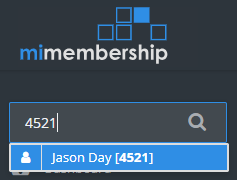
Use the Global Search or any repository to navigate to the member record you would like to update.
Step 2 - Click on the Financial Details tab
Select the Financial Details tab, then the Edit button.
Next to the Ezidebit Customer or Payrix Reference Number, select the $ button.
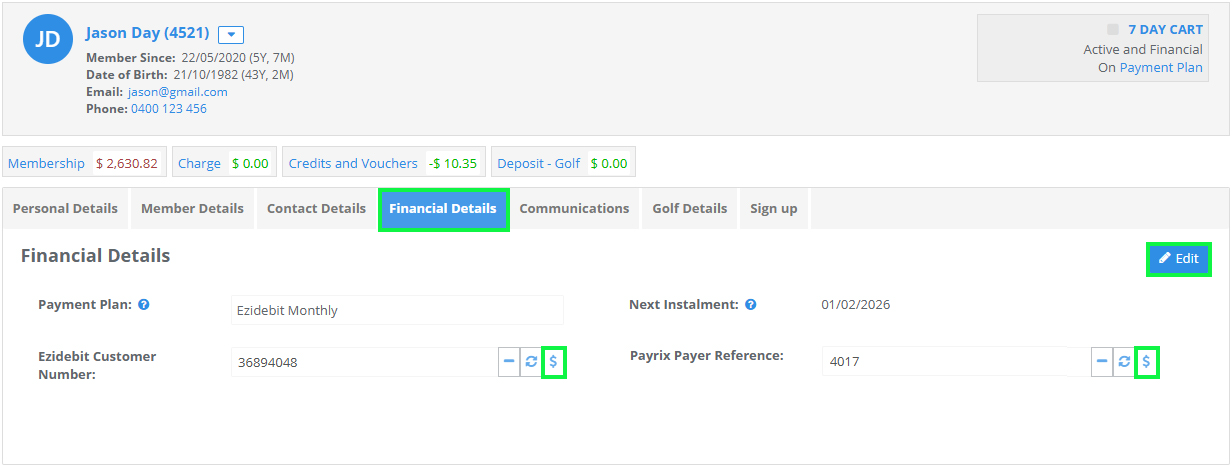
This will open an entry portal window to your payment gateway provider.
Step 3 - Update Credit Card or Bank details
Enter the bank or credit card details provided by the member.
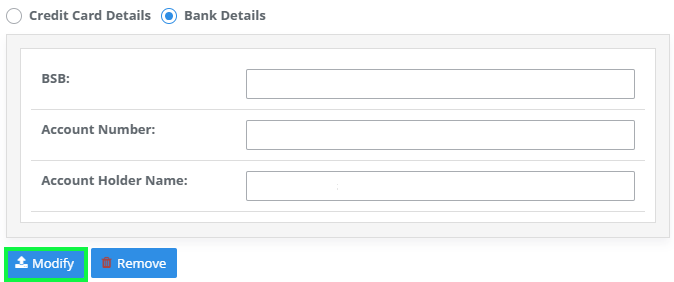
Payrix (Worldpay)
Use the Credit Card or Bank Details button depending on how the member is paying. Click Modify once the details are updated.
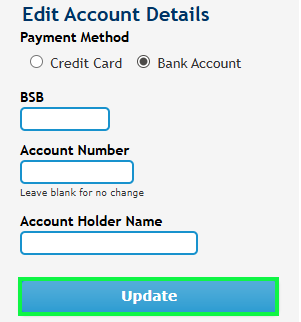
Ezidebit
Use the Credit Card or Bank Account button depending on how the member is paying. Click Update once done.
Note: Personal credit card and bank details are not maintained in MiMembership. These are sent through the secure portal to your chosen payment gateway provider (Payrix or Ezidebit). We recommend you destroy any hard copy documents or notes that include personal member details.
Step 4 - Click Save
Don't forget to click the Save button in MiMembership to finalise updating the members credit card/bank details.

Step 5 - Resend Failed Instalment to Payrix/Ezidebit (Optional)
You will only need to complete this step if the members instalment has failed or is dishonoured due to incorrect credit card/bank details.
Once updated navigate to the Payment Plan Instalments repository, find the member, select the action button next to the failed instalment and Send to Payrix/Ezidebit Direct Debit.
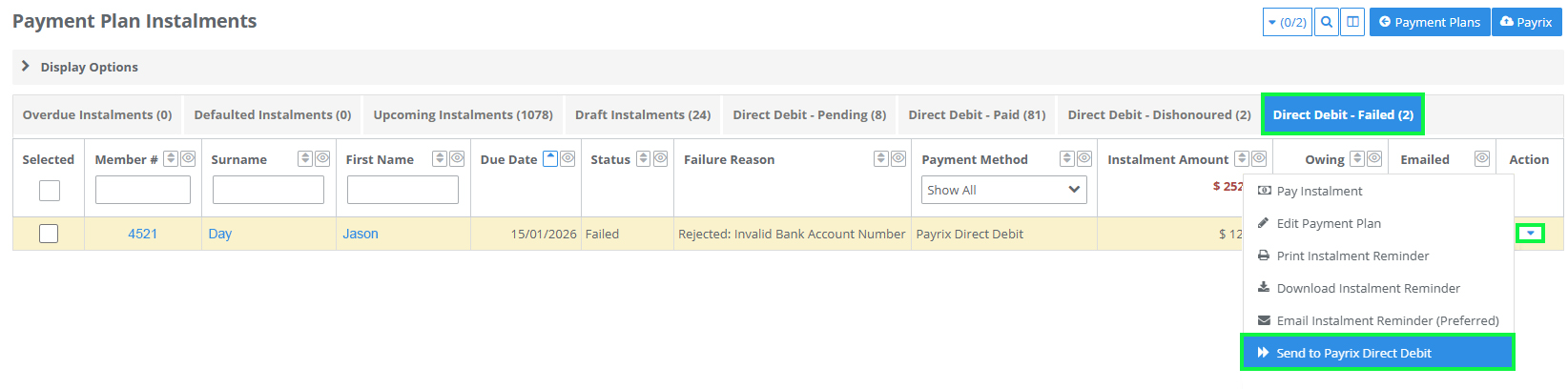
You can also complete this directly from the Member record by going to their payment plan instalments.
Send a Direct Debit Request Form for the Member to complete
You can also send a Direct Debit Request Form to members via email for them to complete.
Once completed the Credit Card or Bank details will go directly to your payment gateway (Payrix or Ezidebit).
Step 1 - Navigate to the Member > Direct Debit Agreements
Navigate to the member's Financials and Direct Debit Agreements from the Member Action menu.
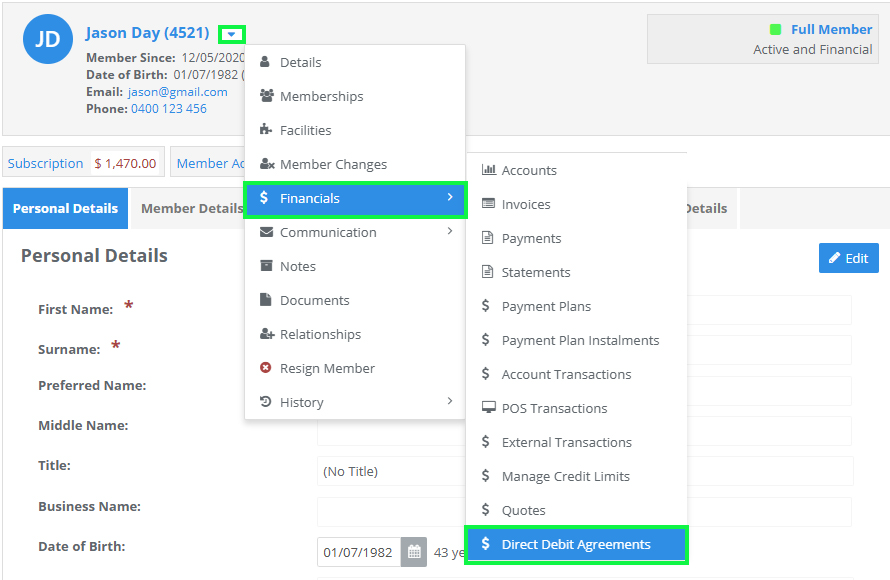
Step 2 - Send Direct Debit Request Form
Click on the Direct Debit Request button located top right of screen to email the form.

Once sent you can check the status of the form from Financials > Direct Debit Agreements.
Initially the status will be In Progress but change to Completed once the member has filled it out and confirmed.

Was this article helpful?
That’s Great!
Thank you for your feedback
Sorry! We couldn't be helpful
Thank you for your feedback
Feedback sent
We appreciate your effort and will try to fix the article