Field sections are used to assemble and record information collected about an individual within the member records. They work with Custom Fields, which are added to a specific Field Section - see more information on how to create a Custom Field >
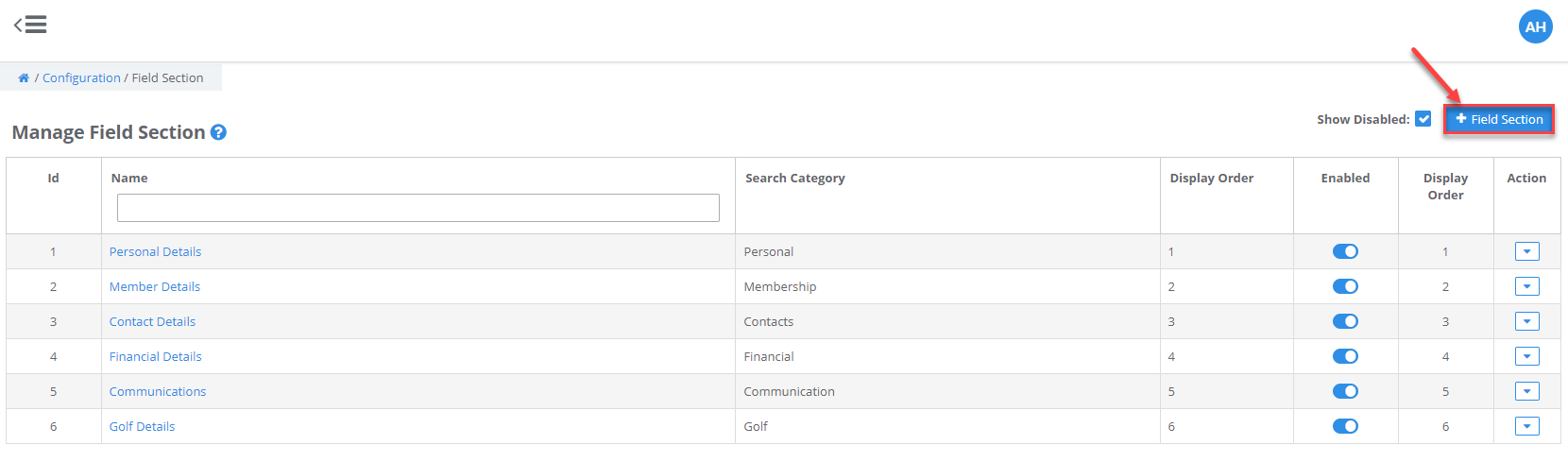
The system default field sections are:
- Personal Details: personal information about the member i.e. first name, surname and date of birth
- Member Details: information unique to the member about their membership i.e. member number and join date
- Contact Details: member contact telephone numbers, emails and addresses
- Financial Details: unique payment reference numbers and payment plan management fields i.e. payment gateway CRNs
- Communication Details: preferred method to receive communications and default system email templates
- Golf Details: unique Golf ID and handicapping information
Example: The club wants to collect member interests and preferences. A Field Section named Interests is created. Custom fields are then added to this section to input data such as Football or other Sporting Club Supporter or Preferred Wine.
Create a new Field Section
- Navigate to Configuration and select Field Sections under the Members section
- Click the +Field Section button
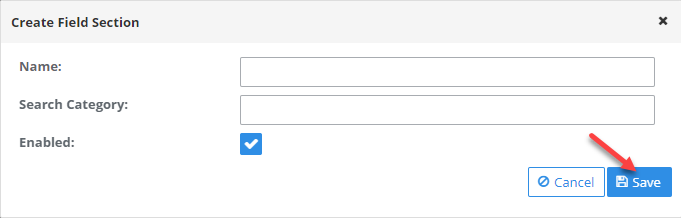
- Enter the new Field Section parameters:
- Name: this populates on the tab in the member record and in Smart Search criteria build options
- Search Category: where the information in the custom fields assigned to the Field Section will be available in the Smart Search critera build options
- Click the Save button. This action creates the new Field Section
Was this article helpful?
That’s Great!
Thank you for your feedback
Sorry! We couldn't be helpful
Thank you for your feedback
Feedback sent
We appreciate your effort and will try to fix the article