Use this process to create a general invoice or credit note that is not linked to a membership.
For example, you need to invoice a member for a dishonour fee resulting from an unpaid direct debit instalment.
A general invoice or credit note can be created from any page that has a +Invoice or +Credit Note button. If you need to create the same invoice or credit note for multiple members, it is best to do so from the Invoice Repository.
Important: If a general invoice on a member’s account has a status of Defaulted, it will not change the status of a membership group from Financial to Unfinancial.
Step 1 – Open the Invoices Repository and select the action
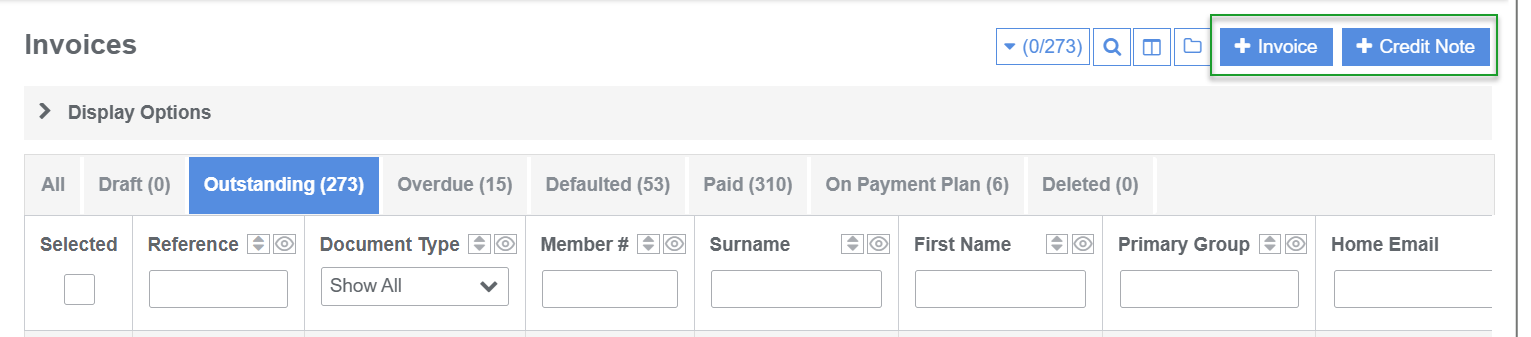
- From the main menu, navigate to Financials > Invoices.
- Click +Invoice or +Credit Note, depending on the document you want to create.
- The account selection dialog will open.
TIP: You can also create a general invoice directly from an individual member’s account record. Select +Invoice from the Account Action button.
Step 2 – Select the account
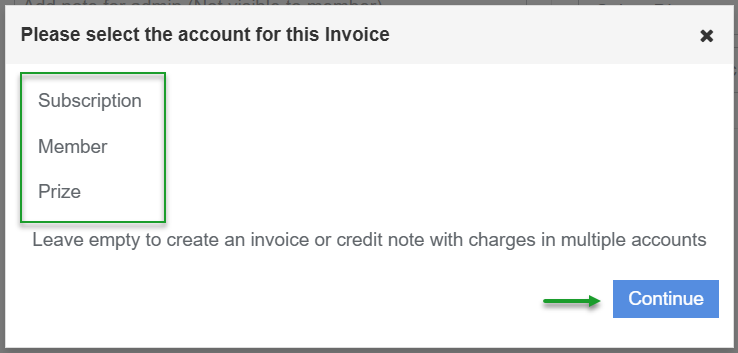
- Select the account to which the invoice or credit note will be assigned (for example, Subscription or, House).
- Click Continue to proceed to the invoice or credit note creation screen.
Step 3 – Select the member accounts
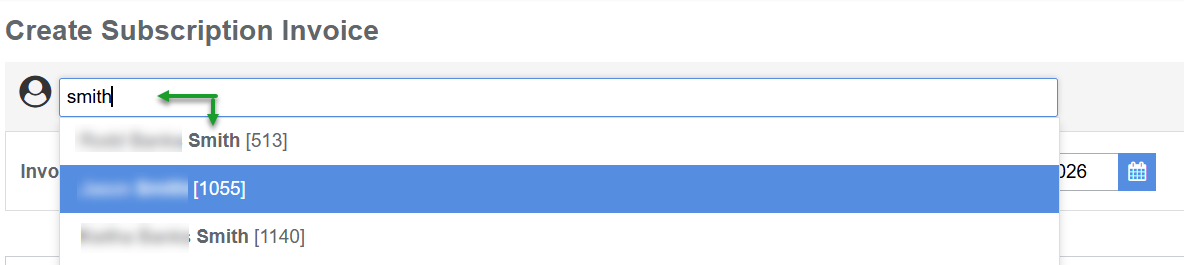
- Enter the member’s name or member number in the search bar. A list of matching members will appear.
- Select the member you want to invoice or credit.
- To create the same invoice or credit note for multiple members, repeat the process to add each required member.
Step 4 – Complete the invoice or credit note details and save
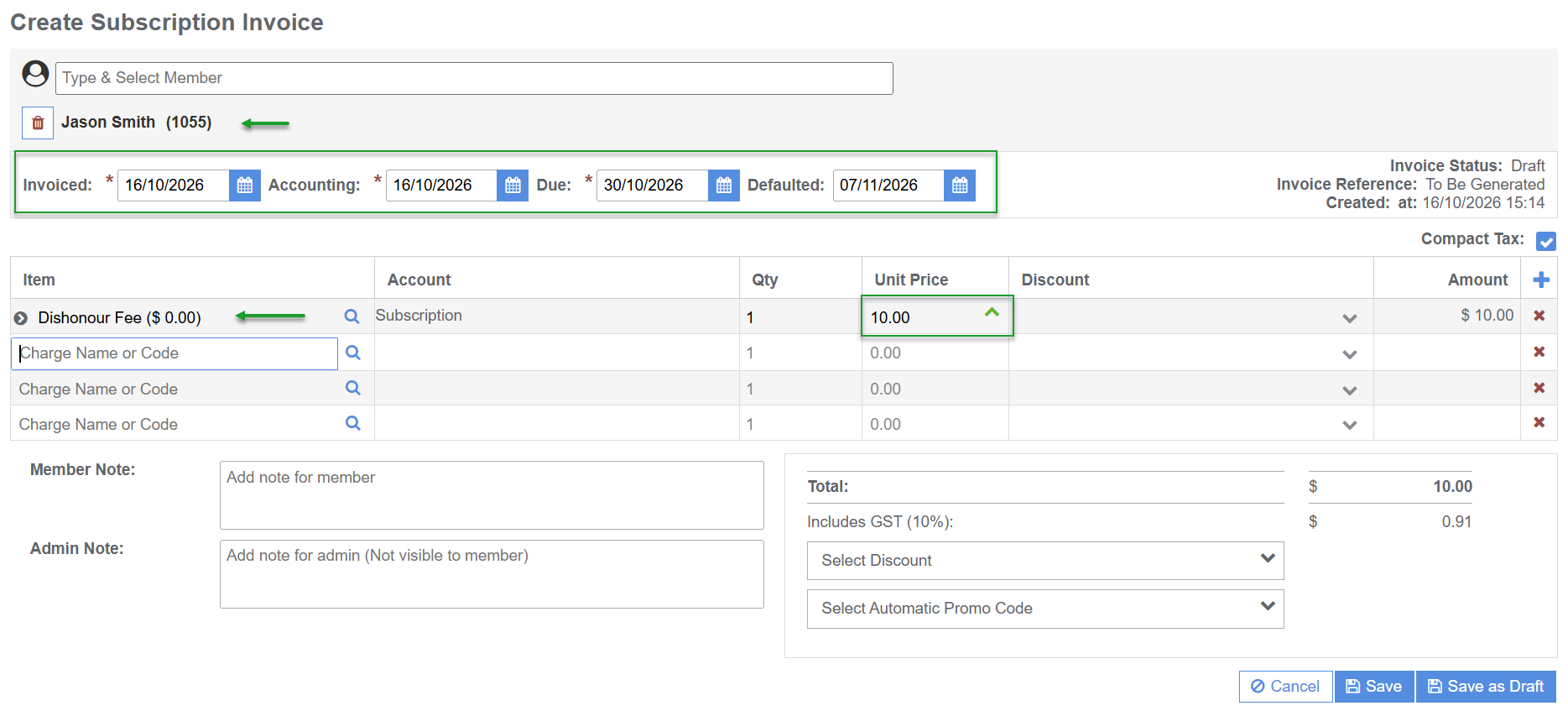
Complete all required fields marked with an asterisk (*).
- Set the invoice dates: Enter the required dates for the invoice or credit note.
- Select the item or charge: In the Item column, start typing the charge name or code in the invoice line. Matching options will appear automatically. Alternatively, click the magnifying glass icon to search for an item. Select the required charge.
- Add additional items: To include multiple charges on the same invoice or credit note, repeat the process on the next Item line.
- Enter the unit price: Enter the amount for each item. When creating a credit note, enter the amount as a negative value (for example, -300.00).
- Add notes (optional): Enter any relevant notes in the Member Only or Admin Only fields, as appropriate.
- Save: Click Save to create the invoice or credit note.
Note: If the invoice contains membership charges, a warning will appear advising that the invoice will not be linked to a membership. To proceed, click Yes.
Optional – Complete additional actions
After saving, a taskbar may appear at the top of the screen with the following options:
- Add Invoice to Payment Plan: also refer to Add Invoice to Existing Payment Plan
- Pay Invoice
- Pay Invoice – Advanced
- Email Invoice
- Print Invoice
Select the relevant action if required. You can also dismiss the taskbar without selecting an action.
Was this article helpful?
That’s Great!
Thank you for your feedback
Sorry! We couldn't be helpful
Thank you for your feedback
Feedback sent
We appreciate your effort and will try to fix the article