Search for and export Membership Groups as at a specific date. For example, you can see how many members were in each membership group at the start of the month.
To track changes and movements between membership groups over time, generate the Group Movement Detailed Report.
Step 1 - Create and run the smart search
- Select Smart Search from the main menu
- Choose Members for the search Output
- Click the Next: Build Criteria button
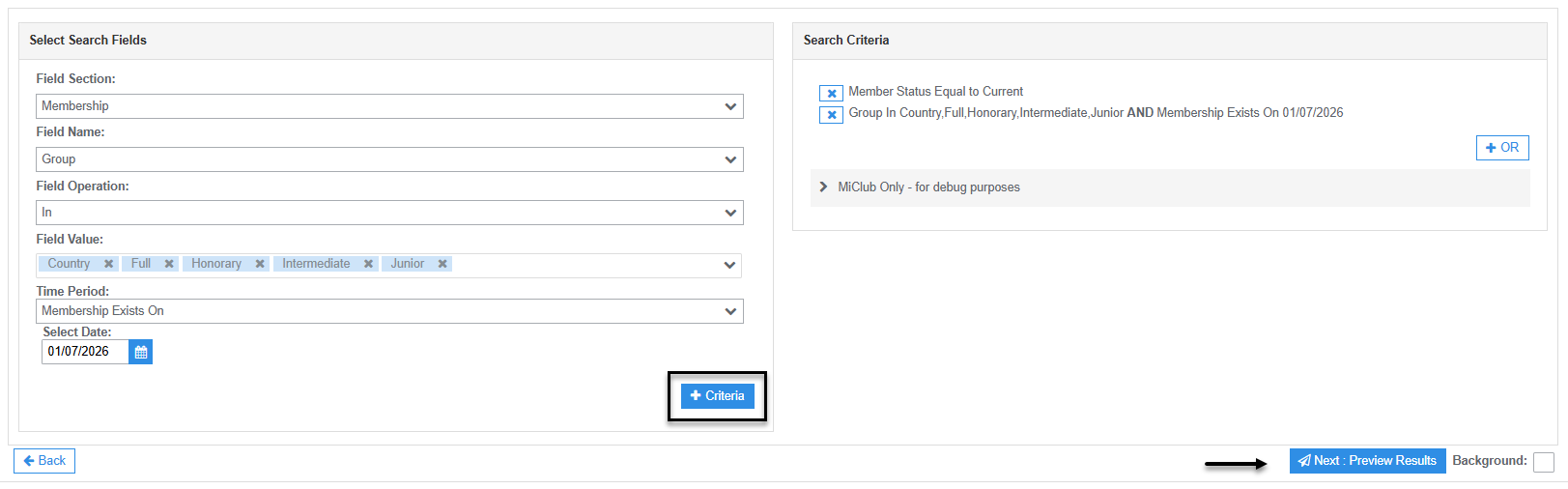
- Set the Criteria for the Memberships in each of the Search Field options:
- Field Section = Membership
- Field Name = Group
- Field Operations = In
- Field Value = select the required Membership Groups (tick box)
- Time Period = Exists On and Set Date to the first day of the month
- Click the +Criteria button
- (Optional) to include any Resigned Members click the X next to the Member Status Equal to Current in the Search Criteria space to remove it
- Click the Next : Preview Results button. This action returns a list of the smart search results
Step 2 - Export the results to CSV
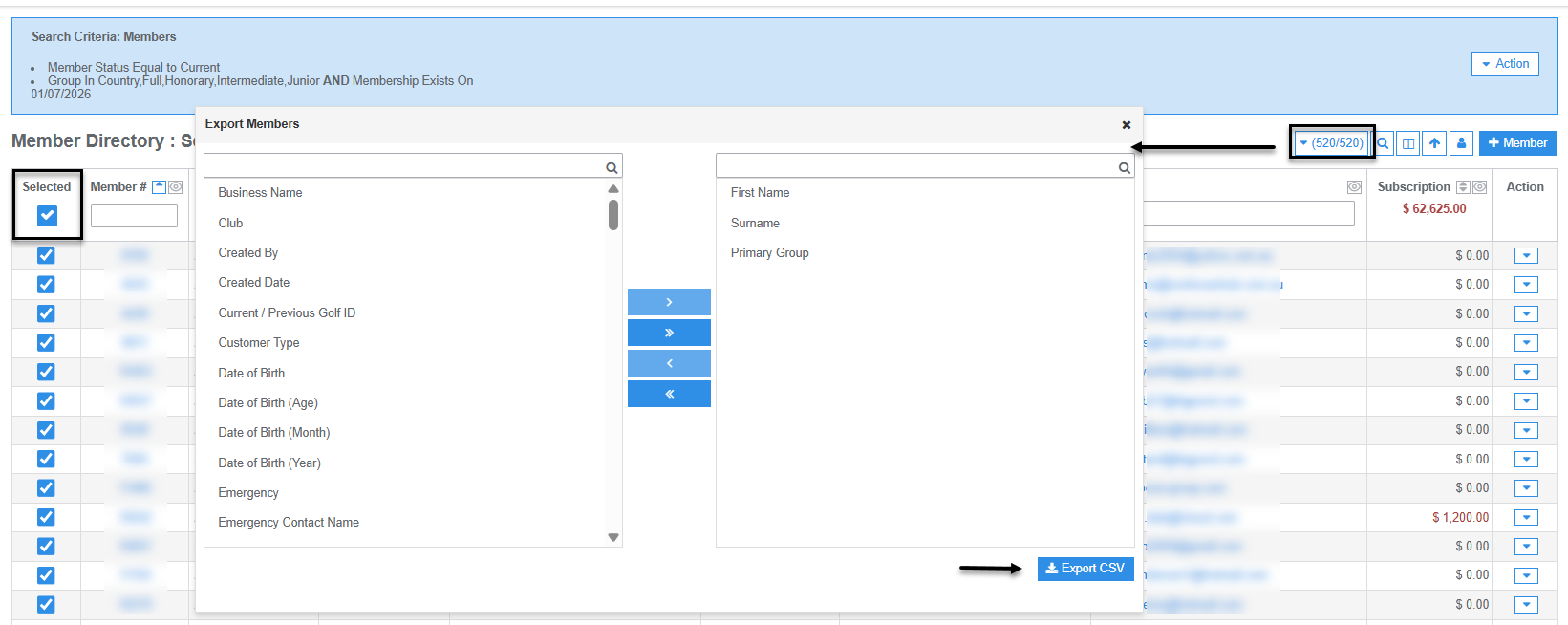
- Tick the Selected all check box
- Select Export Members from the Bulk Action button menu options - this action opens the data export window
- Move data fields from the left column to the right. Selected fields will populate the columns in the spreadsheet
- Click the Export to CSV button - this action downloads the file to your device
Was this article helpful?
That’s Great!
Thank you for your feedback
Sorry! We couldn't be helpful
Thank you for your feedback
Feedback sent
We appreciate your effort and will try to fix the article