Overview
The Membership Sign Up Form is an online membership application form that integrates directly with MiMembership. It allows prospective members to submit membership applications to your club online.
Applications can be configured to either:
- Require Approval: Applications are submitted for review and approval by a MiMembership administrator.
- Automatic Approval: Applications are automatically approved without requiring manual intervention.
If you would like applications to be automatically approved and allow applicants to pay their membership fees during the online application process, please contact MiClub Support. Additional system settings must be enabled to activate this functionality.
Module and Pricing
The Membership Sign Up Form is a paid module available for MiMembership. Please contact your MiClub Account Manager to request a proposal.
Configuring Your Membership Sign Up Form
The following sections explain how to configure and manage your Sign Up Form, including setting up Sign Up Groups, Form Sections and Form Parameters (fields).
1. Add a Sign Up Group
Sign Up Groups determine which membership options are available to applicants on the online Sign Up Form.
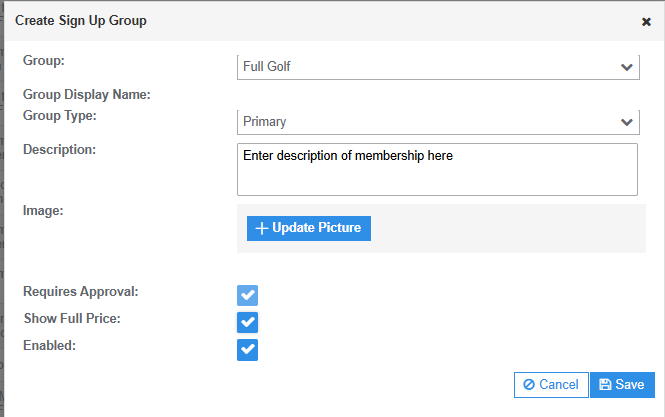
Steps – Create a Sign Up Group
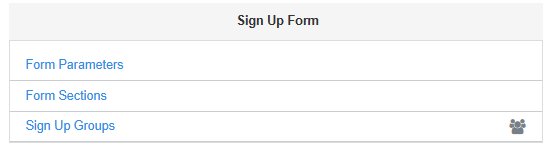
- Navigate to Configuration > Sign Up Groups under the Sign Up Form heading.
- Click + Sign Up Group button.
- Complete the fields in the Create Sign Up Group window:
- Group: Select the relevant membership group from the drop-down menu.
- Group Type: Select either Primary or Add On from the drop-down menu.
- Description: Enter a description of the membership group, if required (optional).
- Image: Upload an image using the + Update Picture button (optional).
- Requires Approval: Tick this checkbox if a MiMembership administrator must manually review and approve applications for this group.
- Show Full Price: Tick this checkbox to display the total membership fee for the group on the online Sign Up Form.
- Enabled: Tick this checkbox to make the membership group available for selection on the online Sign Up Form.
- Click Save to create the Sign Up Group.
Image Guidelines
For the best display on the online Sign Up Form, images should be landscape orientation.
- Recommended image size: 600px x 300px.
If you require assistance resizing your images, please contact MiClub Support.
2. Add a Form Section
Form Sections allow you to organise the fields on your online Sign Up Form into logical categories, making the application process easier for applicants to navigate.
For example, you may create sections such as:
- Personal Details
- Contact Details
- Address Details
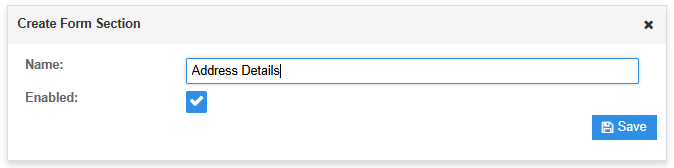
Steps – Create a Form Section
- Navigate to Configuration > Form Sections under the Sign Up Form heading.
- Click + Form Section.
- Enter the name of the Form Section and click Save.
The new section will then be available for selection when configuring Form Parameters.
3. Add a Form Parameter
Form Parameters determine which information is collected from applicants through the online Sign Up Form.
Each parameter represents a data field that applicants may be required to complete, such as Date of Birth, Email Address or Contact Number.
Note: If you require a new Custom Field to be created, please contact MiClub Support for assistance. Alternatively, refer to the relevant knowledge base guide for instructions on creating a Custom Field.
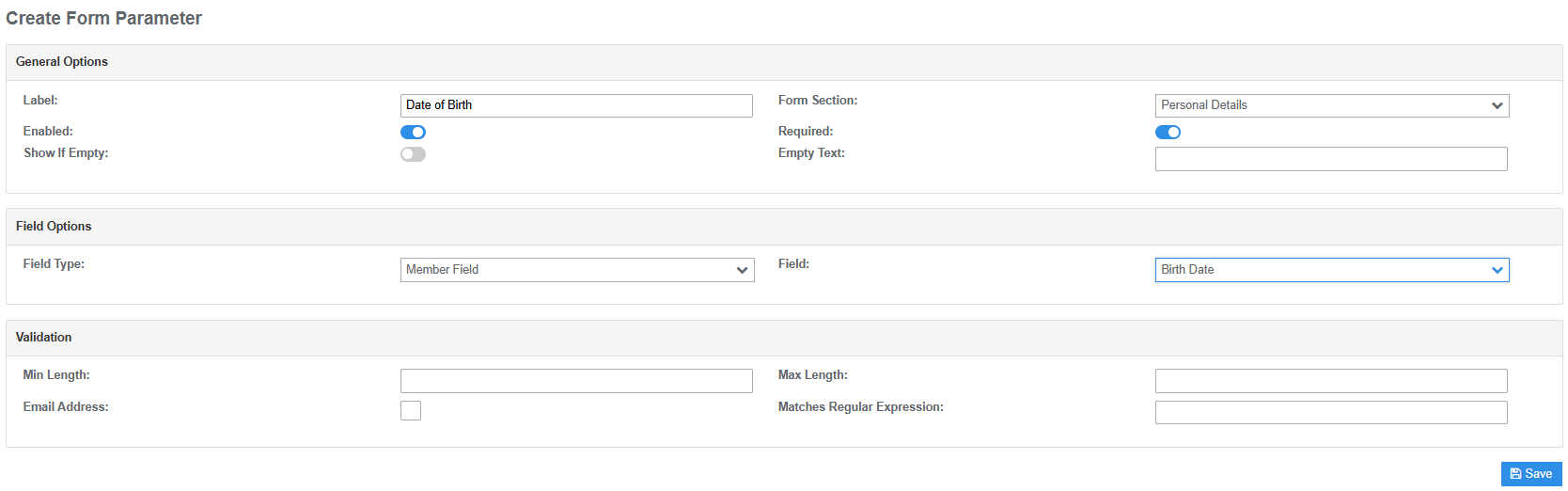
Steps – Create a Form Parameter
- Navigate to Configuration > Form Parameters under the Sign Up Form heading.
- Click + Form Parameter.
- Complete the fields in the Create Form Parameter window:
- Label: Enter the name of the field as it should appear on the online Sign Up Form (e.g. Date of Birth).
- Form Section: Select the Form Section where the field should appear from the drop-down menu.
- Required: Enable this toggle if the applicant must complete this field before submitting their application.
- Field Type: Select the appropriate field type from the available drop-down options.
- Field: Select the relevant MiMembership data field from the drop-down menu.
- Validation: Tick the Email Address checkbox if the parameter is an email address. This applies email address validation to the field.
- Click Save to create the Form Parameter.
4. Preview Membership Sign Up Form
Any changes made to the Membership Sign Up Form configuration become live as soon as you click Save. This means updates to Sign Up Groups, Form Sections and Form Parameters are immediately reflected on the online application form.
You can preview the form at any time to review the layout, content and available membership options.
Steps - Preview the Sign Up Form
- Navigate to Configuration > Sign Up Groups under the Sign Up Form heading.
- Click the View Form button to open the online Membership Sign Up Form.
- Review the form to ensure the membership options, sections, fields and displayed information are correct.
- If any changes are required, return to the relevant configuration area and make the necessary updates. Click Save to apply your changes, then preview the form again to confirm the updates.

Was this article helpful?
That’s Great!
Thank you for your feedback
Sorry! We couldn't be helpful
Thank you for your feedback
Feedback sent
We appreciate your effort and will try to fix the article