Custom Fields are input options used to capture additional or special data for a member. Custom fields can be added to any member field section (tab) and data inputs include date, text, number, select member and select menu options. Custom Fields are available for selection in the Smart Search criteria build options.
Example: You want to capture a date a member was voted to the Board or Directors, or store any special dietary requirements for members.
Step by Step Guide
Step 1 - Add a new Custom Field
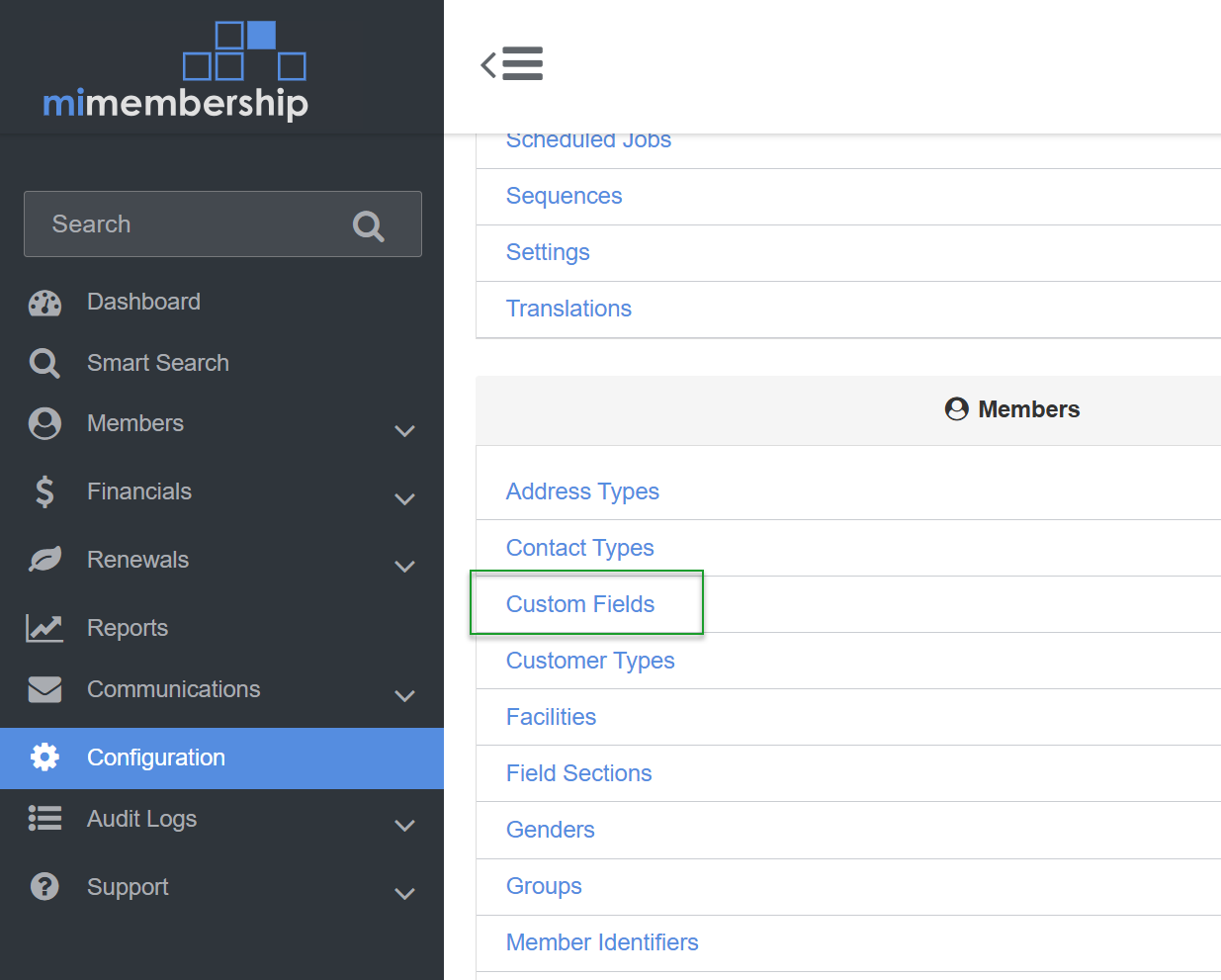
- Navigate to Configuration and click Custom Fields located under the Members section
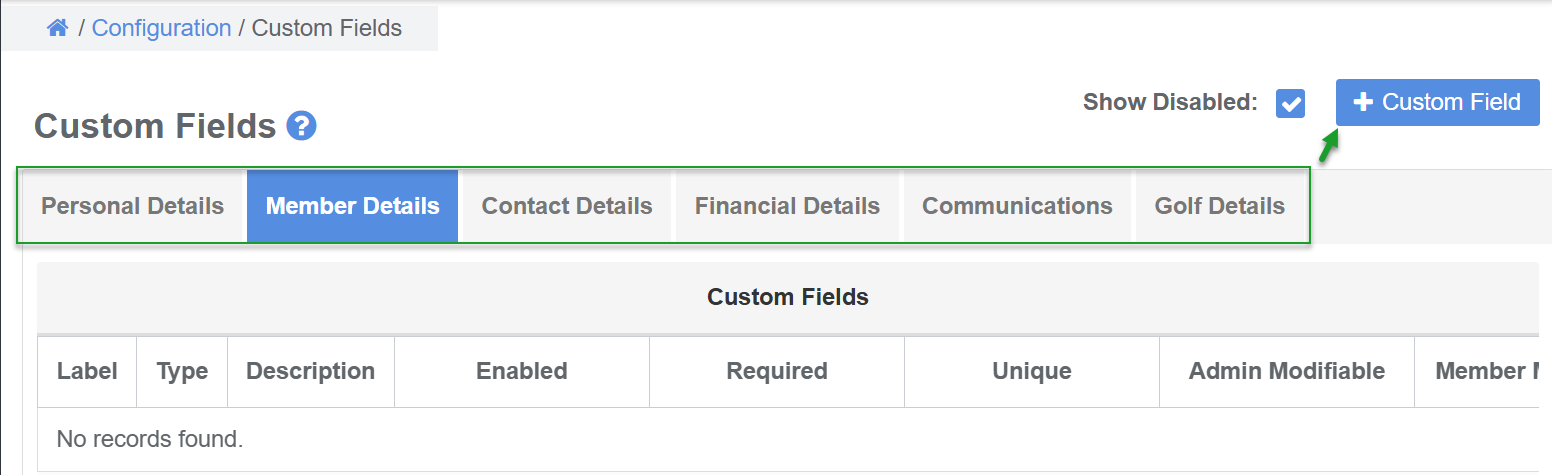
- Select the tab for the Field Section you want the new Custom Field to appear under in the member record
- Click this link for information on how to create a new Field Section>
- Click the +Custom Field button. This action opens the Custom Field parameters dialog window
Step 2 - Enter the new Custom Field parameters and Save
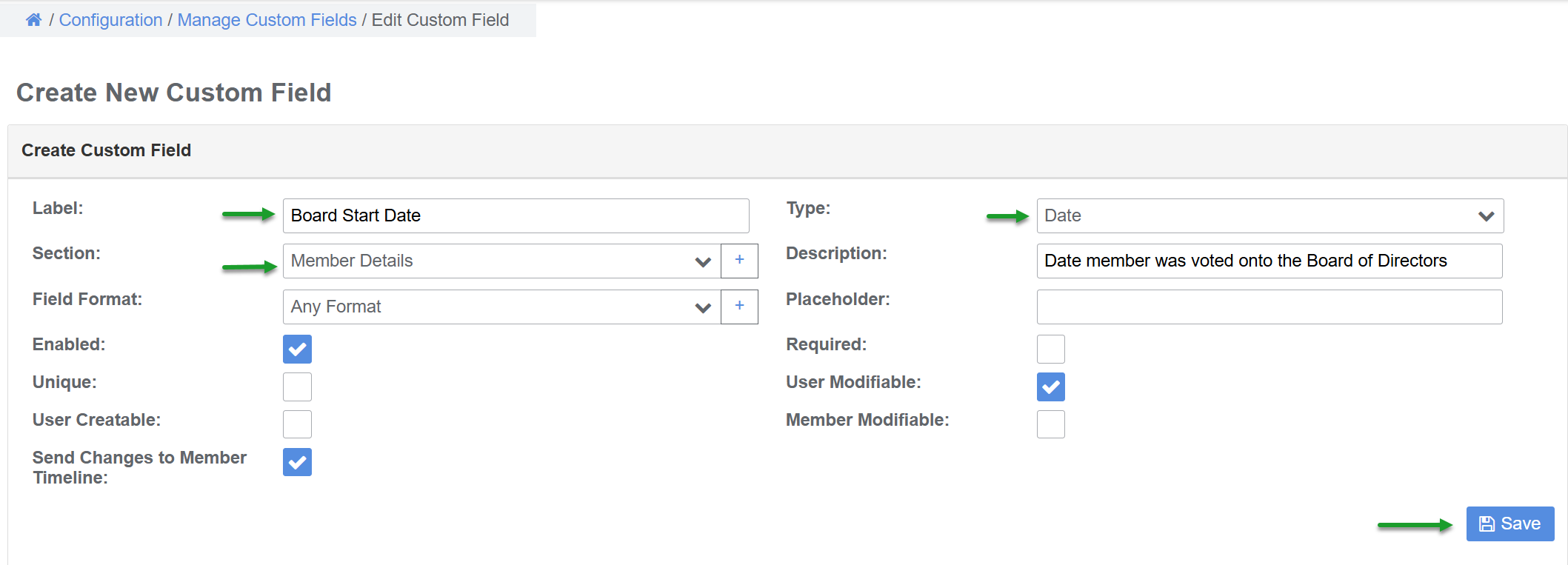
- Enter a Label name. This will appear in the member record
- Select the Type of data to be entered into the field, such as date, number or text
- Confirm the Section (tab) the new Custom Field will appear under. To change section, select option from the drop menu.
- Optional:
- add a Description of the type of data to be entered in the new Custom Field. This information appears on the member record when you hover over the ? icon
- enter a Placeholder. This is an example of, or brief description, for the data to be entered
- tick the Required check box if data is to be entered in this field for all member records
- tick the Unique check box if the data entered in the field cannot be applied to any other member record
- Tick the Send Changes to Member Timeline. Additions, changes and deletions of the field data will be recorded on the member timeline
- Select the Save button. This new Custom Field will appear on all member records under the set Field Section
Was this article helpful?
That’s Great!
Thank you for your feedback
Sorry! We couldn't be helpful
Thank you for your feedback
Feedback sent
We appreciate your effort and will try to fix the article