The Member Draw feature allows authorised MiMembership users to run a random member draw directly from within the MiMembership application.
Access to run a draw is controlled by the security permissions assigned to the MiMembership user.
Before running a draw, it must first be configured. For instructions, refer to How to Create a Random Member Draw.
Note: Member Draw is a paid MiMembership module. Contact your MiClub Account Manager for pricing information.
Step 1 – Navigate to Member Draw
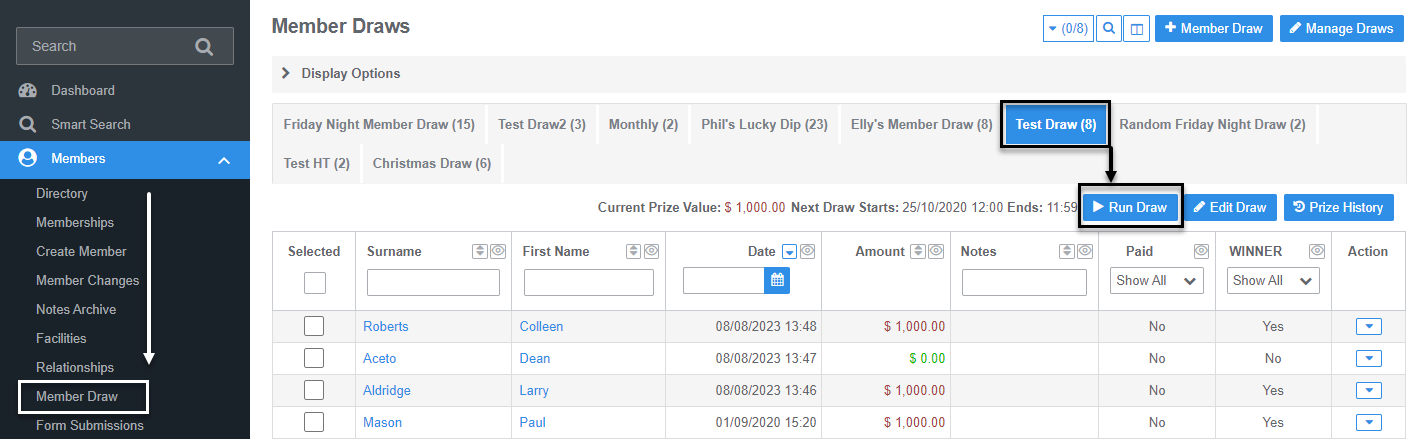
From the main menu, navigate to Members > Member Draw.
Step 2 – Select the Draw
Select the draw due to run from the available draw tabs.
Step 3 – Open the Draw Display
Click the Run Draw button.
This will open the draw display screen.
Step 4 – Start the Draw
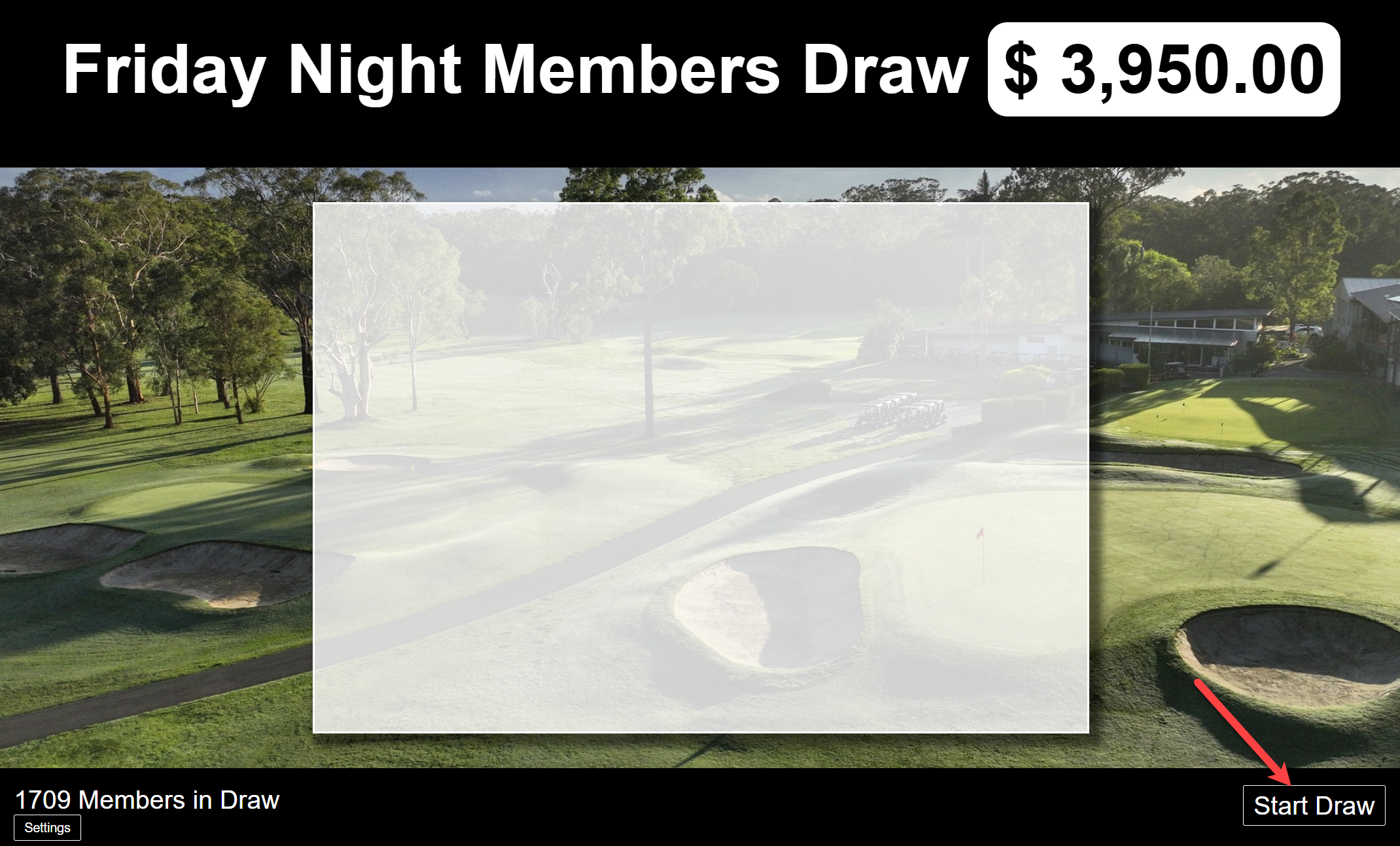
Click the Start Draw button.
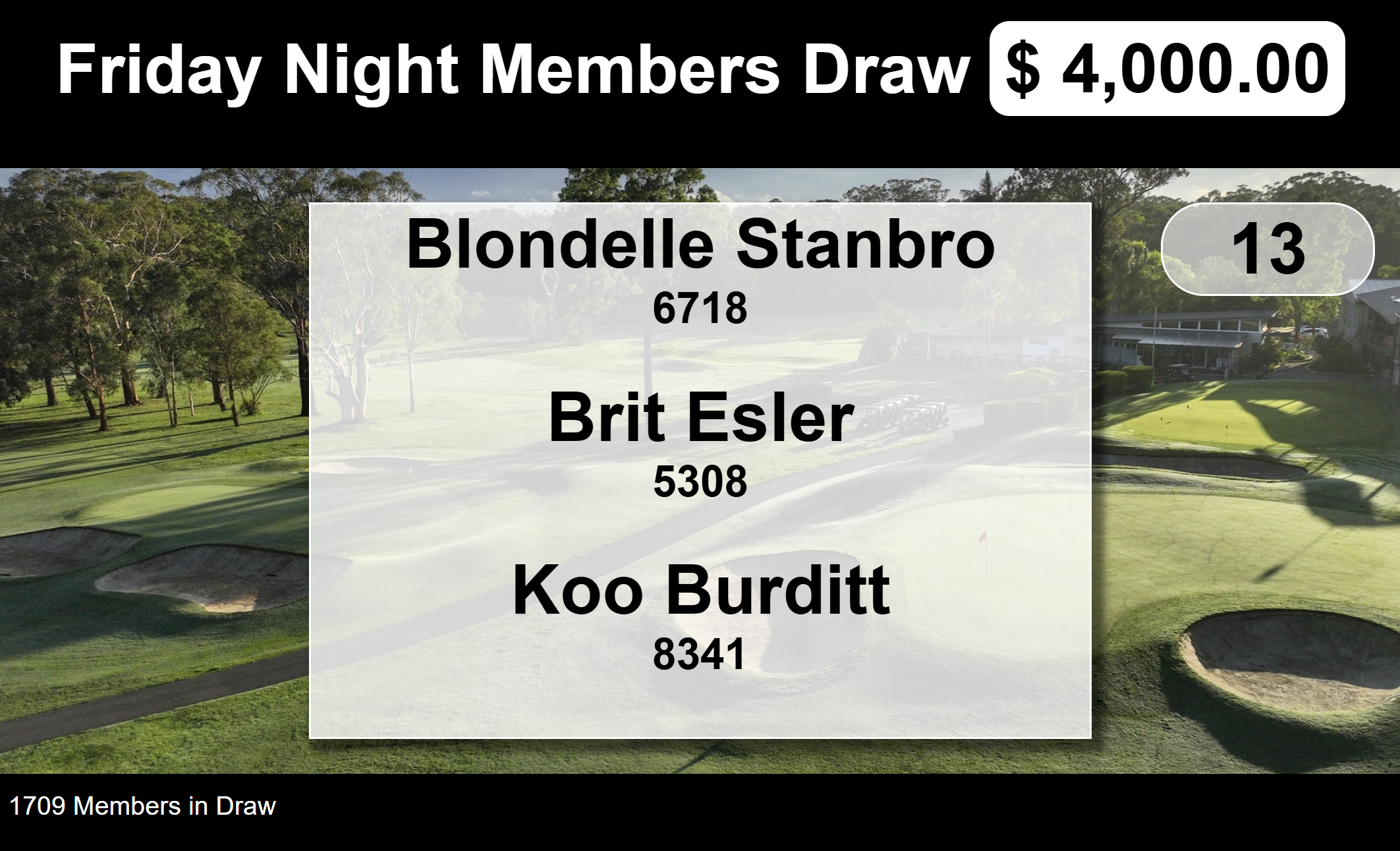
The countdown will begin, and eligible member names will appear spinning on the screen before a winner is selected.
Step 5 – Claim the Prize
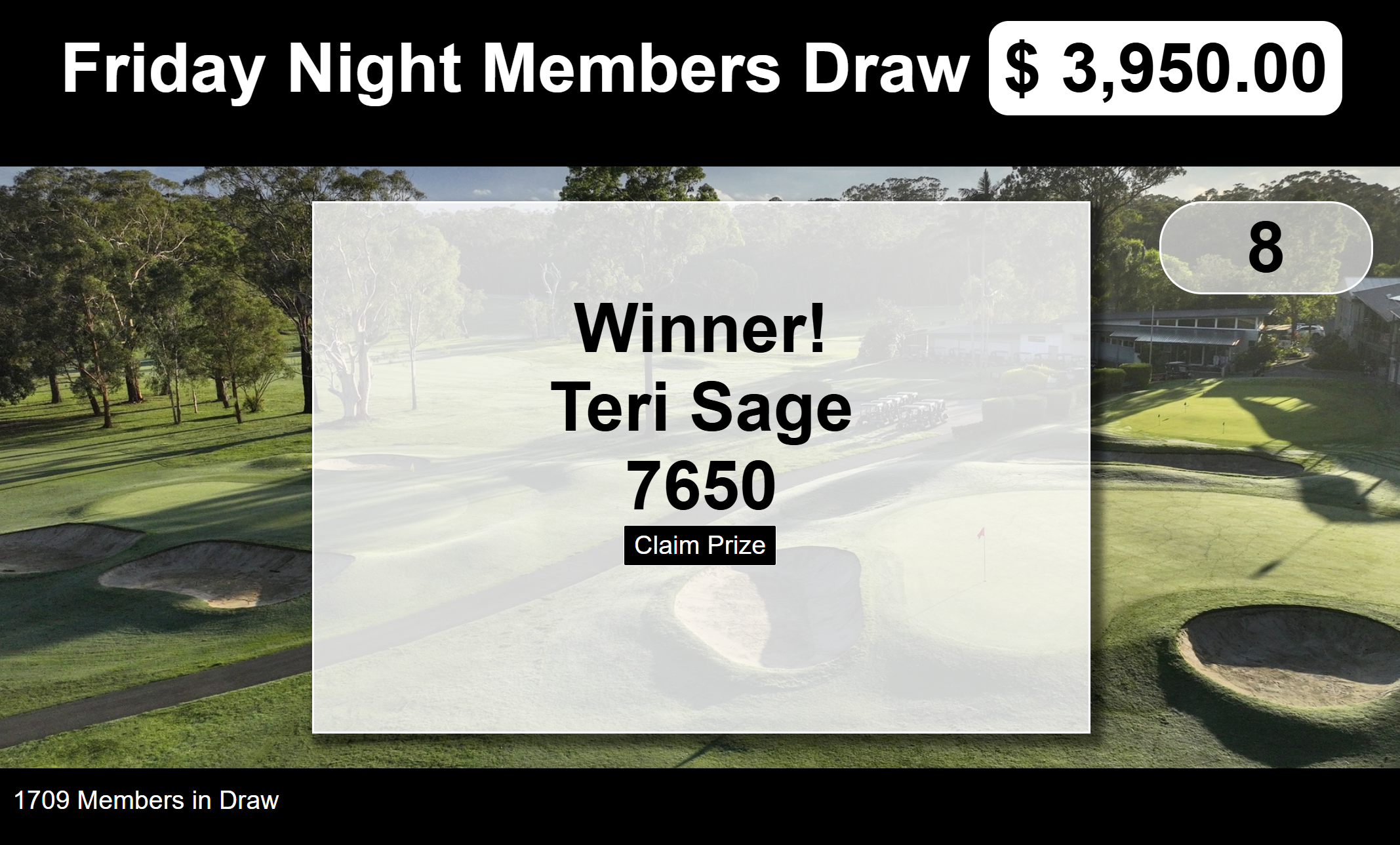
Once a winning member is displayed, click the Claim Prize button only if the selected member presents themselves to claim the prize within the allocated claim time.
If the winning member does not present themselves within the allocated time, do not click Claim Prize. Instead, allow the claim countdown to finish so the draw can proceed.
Step 6 – Continue or Exit the Draw
1. Continue
If the draw is configured to run multiple times, click the Continue button to proceed to the next draw.
The button displays the progress of the draws completed. For example:
- 1/3 Draws – The first of three draws has been completed.
- 2/3 Draws – The second of three draws has been completed.
2. Exit
Once all draws have been completed, click the Exit button to return to the Draw Repository.
Important: To trigger the prize increment when a prize is not claimed, you must exit the draw using the Exit button. Simply navigating away from the page or closing the screen will not register the draw as completed.

Step 7 – Update the Winner's Paid Status
When a prize is successfully claimed, the winner's name and prize amount are recorded in the Draw Repository.
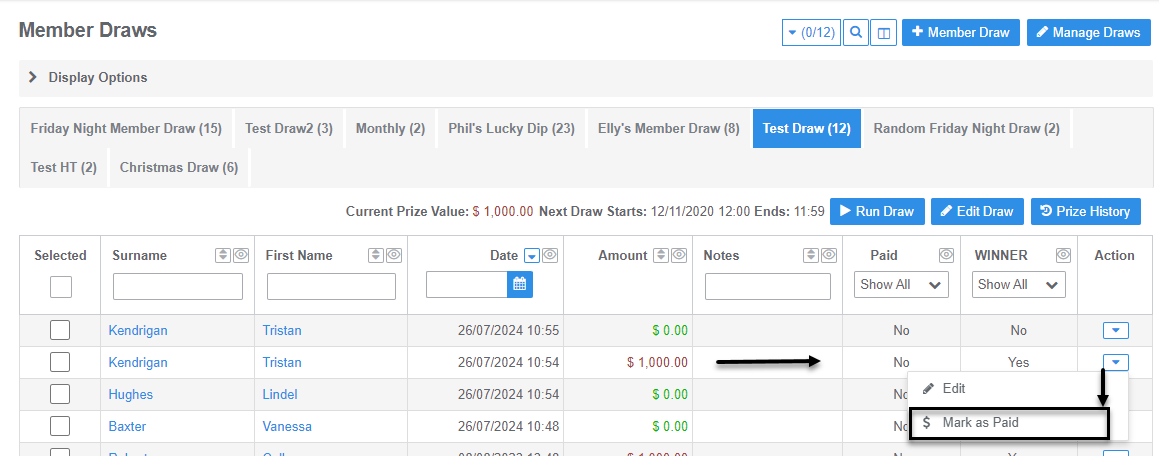
The winner's Paid status will initially display as NO until the prize amount has been marked as paid.
We recommend updating the Paid status to YES once the prize has been distributed.
To update the Paid status:
- From the main menu, navigate to Members > Member Draw.
- Select the relevant draw tab to open the Draw Repository.
- Locate the winning member.
- From the Action drop-down menu next to the winner's record, select $ Mark as Paid.
The winner's Paid status will now update to YES.
Adding a note to a draw winner
To add or update a note against a winning member's record, select the Edit action from the Action drop-down menu.
Was this article helpful?
That’s Great!
Thank you for your feedback
Sorry! We couldn't be helpful
Thank you for your feedback
Feedback sent
We appreciate your effort and will try to fix the article