The Member Draw feature allows administrators to create and run random draws using the MiMembership database.
Administrators can configure eligibility criteria to determine which members are included in the draw. Criteria can include:
- Membership Group
- Age
- Gender
- Financial status
- Individual members to exclude from the draw
User Access and Security
Access to create, run and edit Member Draws is controlled by the user's security level. For example, administrators can configure a user to have permission to run a draw without having access to edit the draw configuration settings.
To run a draw, follow the instructions in How to Run a Member Draw.
Note: Member Draw is a paid MiMembership module. Contact your MiClub Account Manager for pricing information.
Step 1 – Add a New Draw
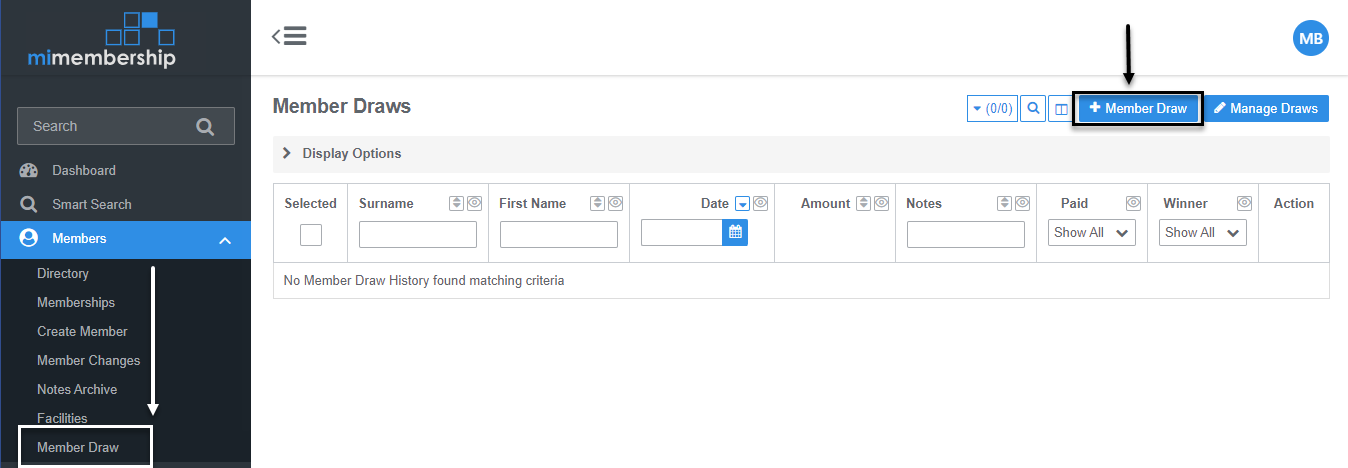
- From the main menu, navigate to Members > Member Draw.
- Click the + Member Draw button to create a new draw.
Step 2 – Configure the Draw
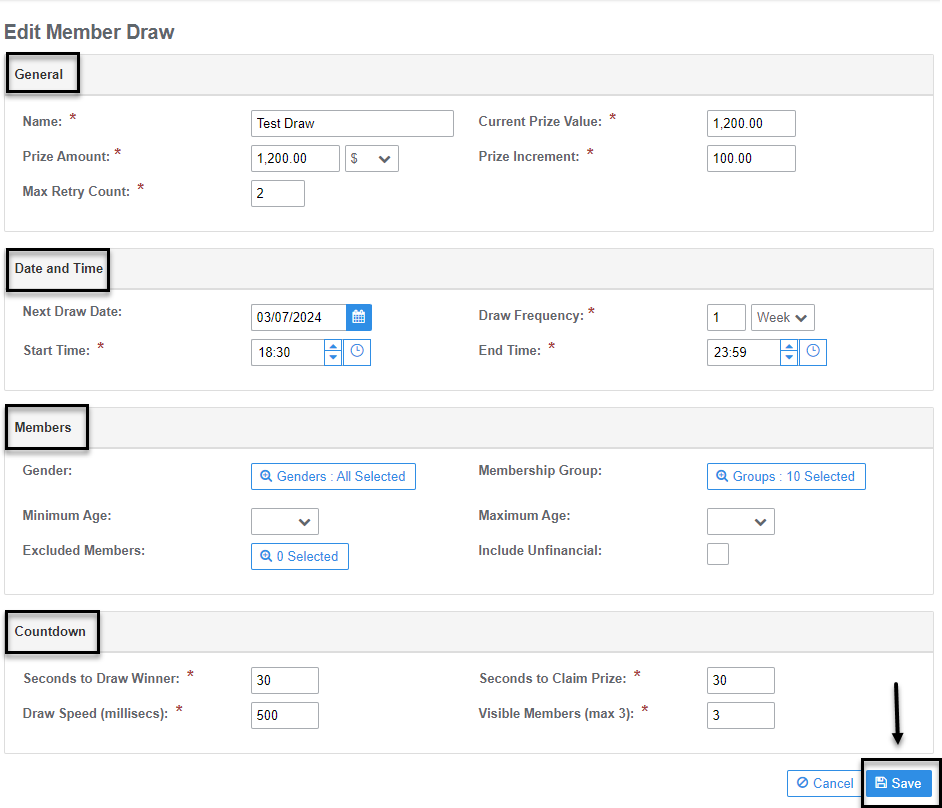
Complete each section of the Draw Configuration.
1. General Details
Enter the general information and prize settings for the draw.
| Field | Description |
| Name | Enter the name of the draw. This name is displayed on the member draw view. |
| Prize Amount | Enter the current prize amount. This amount is displayed on the member draw view and increases by the Prize Increment each time the draw is not claimed. |
| Prize Value | Enter the starting prize amount (standard value). When a prize is claimed, the Prize Amount resets to this value. |
| Prize Increment | Enter the amount by which the prize increases each time the draw is not claimed. |
| Max Retry Count | Specify the maximum number of additional times the draw can be retried within a single session or day. |
2. Draw Date and Time
Configure when and how frequently the draw will run.
| Field | Description |
| Next Draw Date | Select the next date the draw is scheduled to run. |
| Draw Frequency | Specify how often the draw will run. |
| Start/End Time | Set the start and end times during which the draw can run. |
3. Membership and Member Eligibility
Specify which members are eligible to be included in the draw.
| Field | Description |
| Gender | Select the genders to include in the draw. |
| Groups | Select the membership groups eligible for the draw. |
| Min/Max Age | Enter the minimum and maximum age requirements. Leave these fields blank if no age restrictions apply. |
| Excluded Members | Select individual members who must be excluded from the draw. |
| Include Unfinancial | By default, unfinancial members are excluded. Enable this option if unfinancial members are also eligible to participate. |
4. Countdown Display
Configure how the draw appears on screen, including the countdown and winner selection animation.
| Field | Description |
| Seconds to Draw Winner | Specify how many seconds member names will spin on screen before a winner is selected. |
| Seconds to Claim Prize | Specify how many seconds the selected member has to present themselves and claim the prize. |
| Draw Speed | Adjust the speed at which member names spin in the display. A lower value makes the names spin faster. |
| Visible Members (max. 3) | Specify the number of member names displayed in the spinning carousel. The default setting is 1. |
Once all required configuration details have been entered, click Save to save the draw.
Proceed to Step 3 if you would like to customise the draw background image (optional).
Step 3 – Change the Draw Background Image (Optional)
You can customise the draw display by uploading a background image to your club website or MiMembership site.
1. Upload the Background Image
- Upload your chosen image to the club website or MiMembership site.
- We recommend using a high-resolution image in landscape orientation (width greater than height), with a suggested width of 1800 pixels.
- If you require assistance uploading the image, contact support@miclub.com.au.
2. Copy the Image URL
Once the image has been uploaded, copy its URL. You will need this URL to update the MiMembership setting.
3. Update the MiMembership Setting
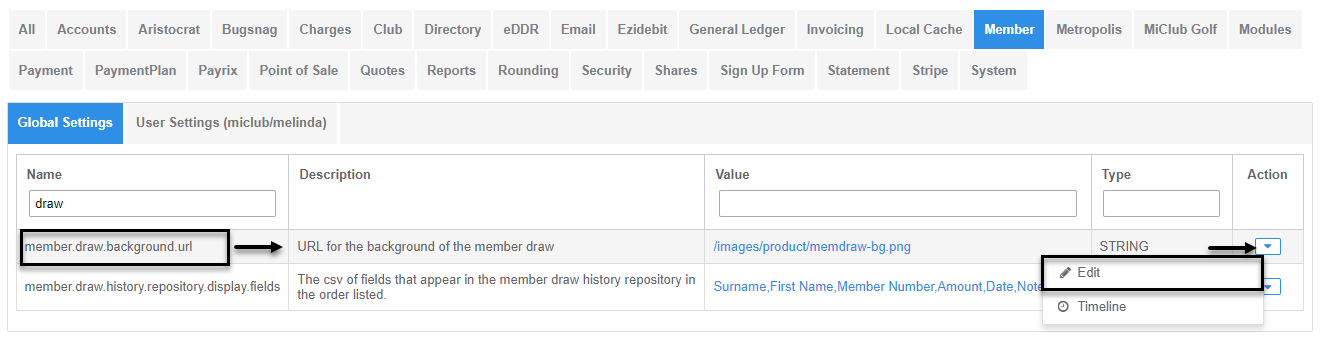
- Navigate to Configuration > Global > Settings > Member.
- Locate the setting member.draw.background.url.
- From the Action dropdown menu, select Edit.
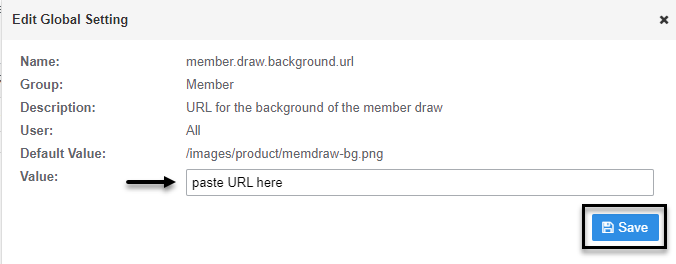
- Remove the existing content from the Value field.
- Paste the copied image URL into the Value field.
- Click Save to apply the change.
The new background image will now be displayed on the Member Draw screen.
Was this article helpful?
That’s Great!
Thank you for your feedback
Sorry! We couldn't be helpful
Thank you for your feedback
Feedback sent
We appreciate your effort and will try to fix the article