Follow these steps to send an email to members included in a batch.
Step 1 – Open the Batch
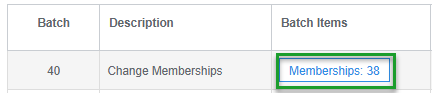
- From the main menu, navigate to Audit Logs > Batch History.
- Locate the relevant batch.
- Click the Batch Items button to view the members included in the batch.
Step 2 – Select All Members
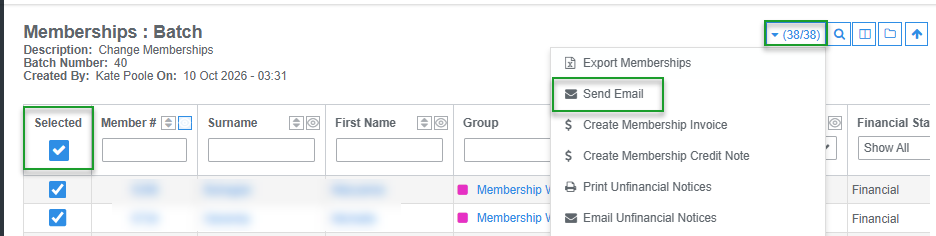
- Select the Select All checkbox to select all members in the batch.
- Click the Bulk Action button.
- Select Send Email.
This will open the Send Email Message page, where you can compose your email.
Step 3 – Compose and Send the Email
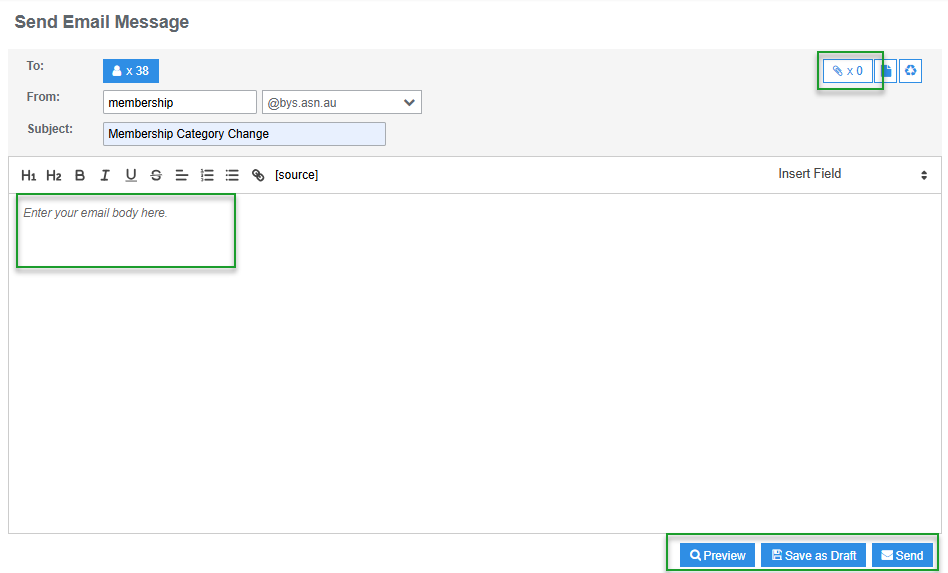
On the Send Email Message page, you can enter the email subject and compose the body of your message.
Compose the Email Body
- Enter your preferred Subject line.
- Write the message you want to send to members in the Email Body field.
Was this article helpful?
That’s Great!
Thank you for your feedback
Sorry! We couldn't be helpful
Thank you for your feedback
Feedback sent
We appreciate your effort and will try to fix the article