Images can be added to existing email content or during the creation of new email content.
Step by Step Guide
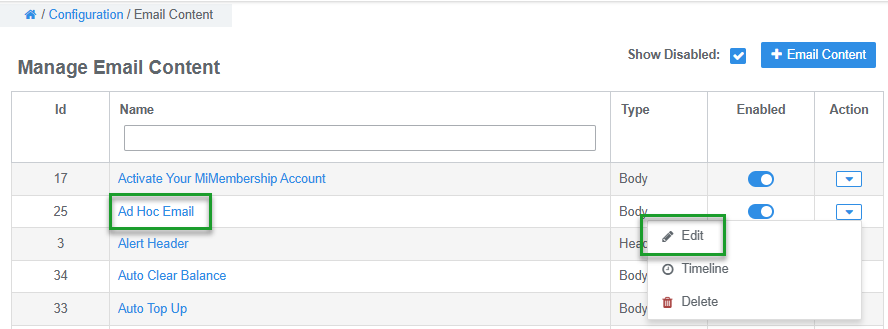
Step 1 - Select and open the email content to edit
- From the main menu select Configuration
- Select Email Content located under the Communications header
- Click the Name link to open the email content, or use the Action button and select the Edit option
Step 2 - Select and add the image template to the email body
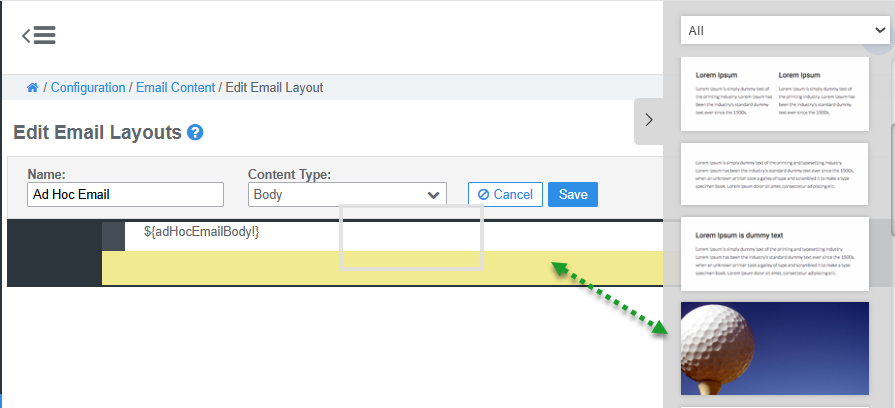
- From the side menu, view and select your preferred Image Template
- Hover your mouse over the image template and Left Click to Drag and Position the image in the Email Body
Step 3 - Edit and upload your image to the email content
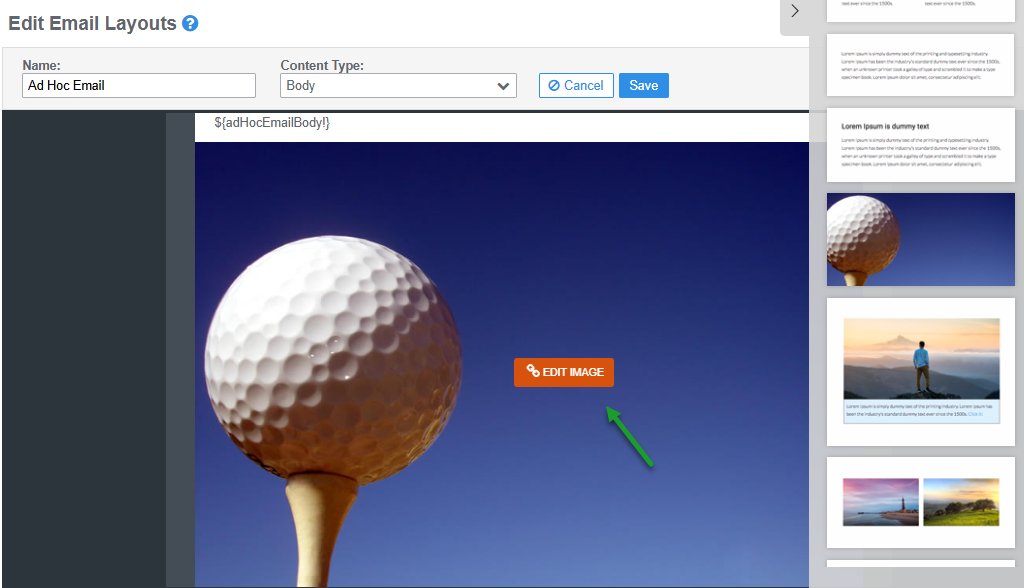
- Click the Edit Image button - this appears when you hover your mouse over the image template
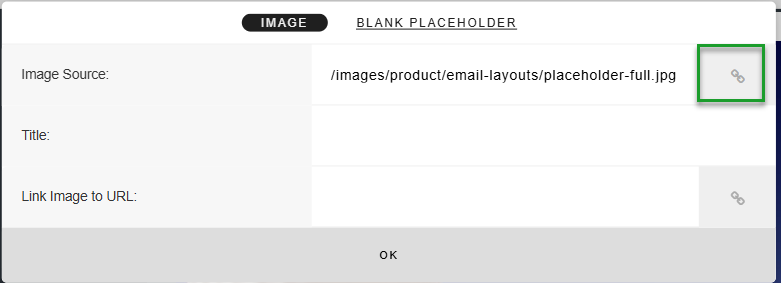
- The Source window will open. Click the Link for the Image Source
- Click the Import button located top left. This opens your file explorer - select and open your image
- Click the Upload button. You may also select to resize your image before you upload it
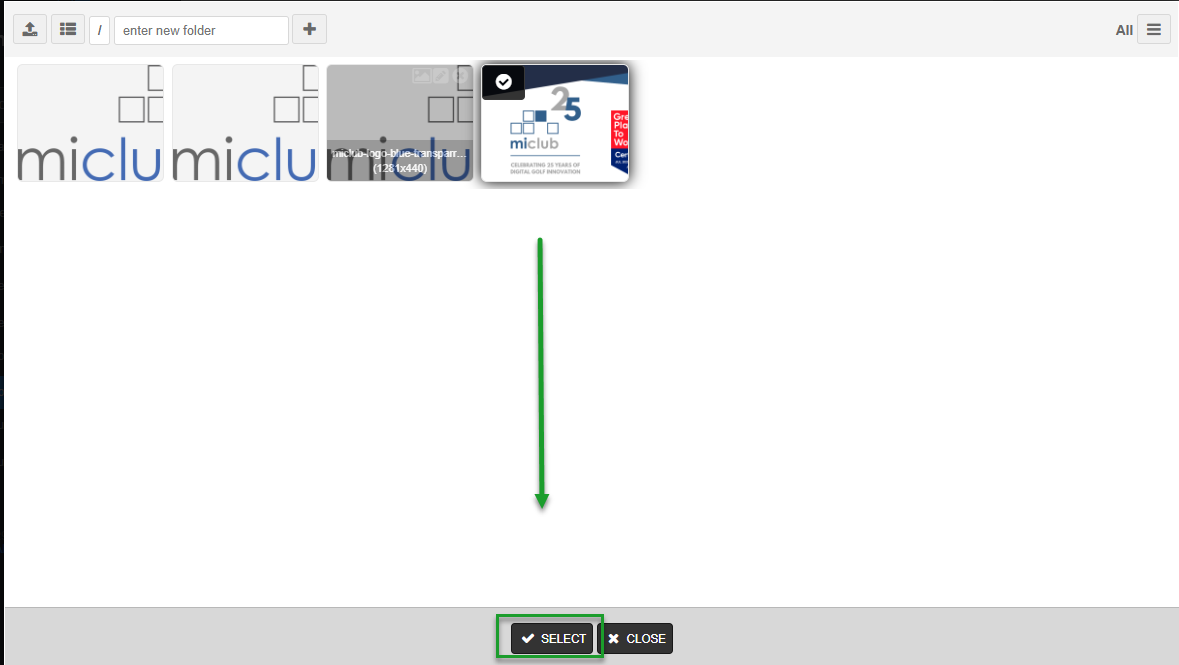
- Click on the Image Thumbnail and then click the Select button
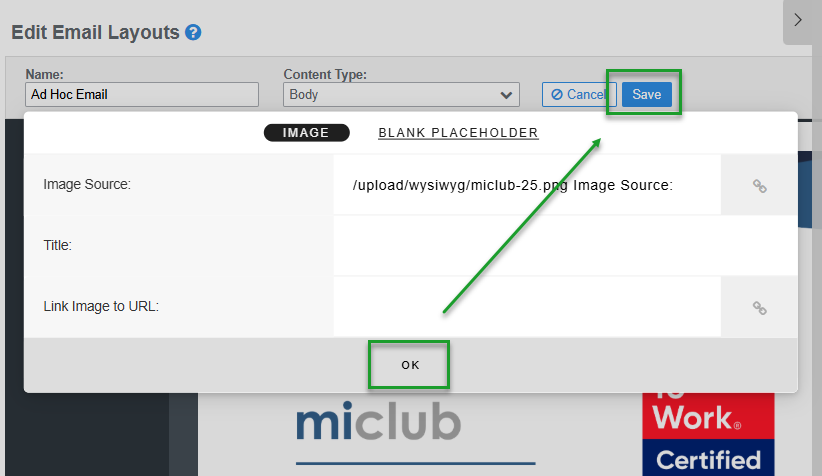
- Click the OK button, then Save button. Your image is now embedded in the email content


Was this article helpful?
That’s Great!
Thank you for your feedback
Sorry! We couldn't be helpful
Thank you for your feedback
Feedback sent
We appreciate your effort and will try to fix the article