Process Task Bar
After you perform an action, like creating a new member or an invoice, the system presents a task bar at the top of the webpage with suggested actions you may want to perform … or you can dismiss this panel
Example: Create a Member Record
- Task bar appears to confirm the member record has create successfully and to Add Membership Groups
- Task bar after changing / adding a membership group to Create Membership invoice
- Task bar after creating an invoice to Add Invoice to Payment Plan, Pay Invoice or Email Invoice



Background Task Running
Some bulk actions and report runs can take a few minutes to complete. In these cases a background task will run while you carry on with other things. This task bar will appear top right of the webpage
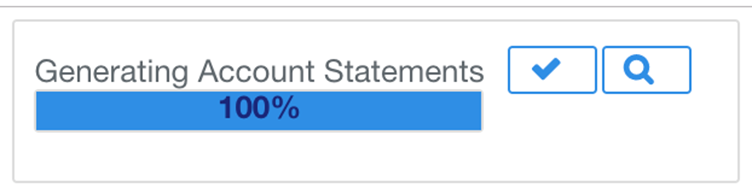
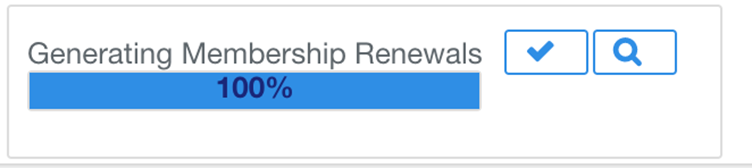
- If you choose to do a bulk action, such as generating statements or running a membership renewal for all members, a background task will begin
- While this is running you can carry on with other actions
- The progress of your task will be displayed as a percentage complete
- On completion you can dismiss the progress bar by clicking on the tick or view the results buy clicking on the magnifying glass button
 |  |  |
Was this article helpful?
That’s Great!
Thank you for your feedback
Sorry! We couldn't be helpful
Thank you for your feedback
Feedback sent
We appreciate your effort and will try to fix the article